Order Tracking for Buyers
Buyer GuideAfter you purchase a service, your order moves through a series of stages from payment to completion. This guide explains each stage, what to expect, and what actions you can take.
Finding Your Orders#
Go to your Dashboard and click My Orders in the sidebar. You will see a list of all your orders with their current status, vendor, amount, and date.
Use the status filters at the top to narrow the list:
- Active -- Orders that need your attention or are in progress
- Completed -- Finished orders
- Cancelled -- Orders that were stopped
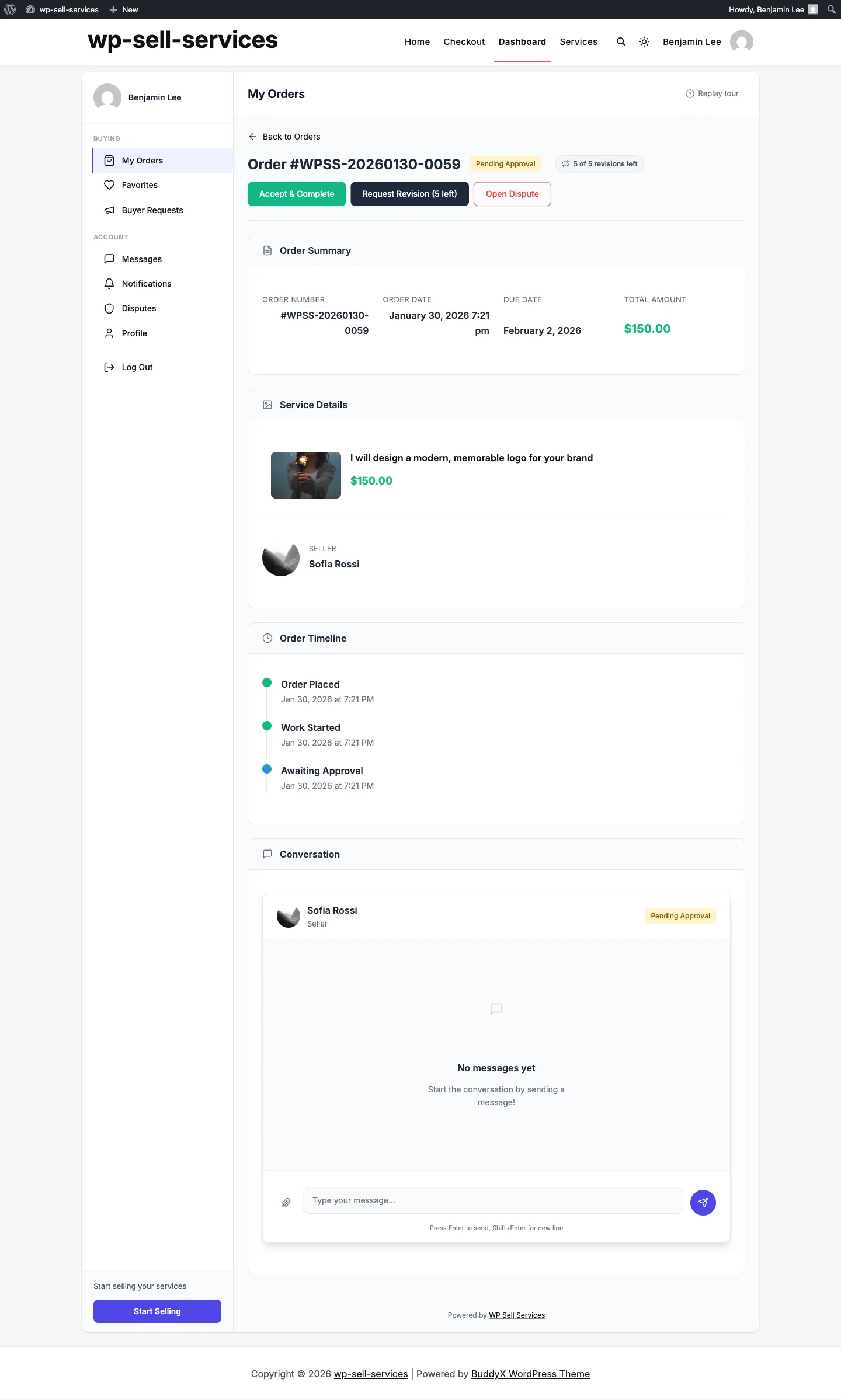
Click any order to open its detail page with the full timeline, messages, deliveries, and available actions.
Order Statuses Explained#
Here is every status your order can have, what it means, and what you should do.
Pending Payment#
What it means: You started checkout but payment has not been confirmed yet.
What to do: Complete payment. If you used offline/bank transfer, send the funds and wait for the marketplace admin to confirm receipt. Orders are automatically cancelled if payment is not confirmed within 24 hours.
Pending Requirements#
What it means: Payment is confirmed. The vendor is waiting for your project details before starting work.
What to do: Fill out the requirements form with the information the vendor needs -- project description, preferences, reference files, and any other details they asked for.
Important: Submit requirements as soon as possible. The vendor cannot start until you do. The system sends you reminders on day 1, 3, and 5 if you have not submitted.
If you take too long (default: 7 days), the marketplace may either auto-start the order without your requirements or cancel it, depending on how the admin configured the timeout.
In Progress#
What it means: The vendor is actively working on your order. A delivery deadline has been set based on the package you chose.
What to do: Wait for the vendor to deliver. You can send messages if you need to clarify something or share additional information. The vendor receives a reminder 24 hours before their deadline.
Late#
What it means: The delivery deadline has passed and the vendor has not submitted their work yet.
What to do: You will receive a notification that the order is late. The vendor can still deliver, and they may request a deadline extension. If the delay is unreasonable, you can contact the vendor through the messaging system or open a dispute.
Pending Approval#
What it means: The vendor has submitted their completed work for your review.
What to do: This is the most important step. Review what the vendor delivered and choose one of three options:
| Action | When to Use |
|---|---|
| Accept Delivery | The work meets your expectations. The order is marked complete. |
| Request Revision | The work needs changes. Provide specific feedback so the vendor knows what to fix. Only available if you have revisions remaining. |
| Open Dispute | Something is seriously wrong -- the delivery does not match what was promised, or there is a significant quality issue. |
Auto-complete: If you do not respond within the auto-complete window (default: 3 days), the order automatically completes and the vendor gets paid. Review deliveries promptly to keep control.
Revision Requested#
What it means: You asked the vendor to make changes. They are working on the revision.
What to do: Wait for the vendor to submit their updated delivery. Use the messaging system if you need to clarify your revision feedback.
Revision limits: Each package includes a set number of revisions. You can see how many you have remaining on the order detail page. Once you have used all included revisions, the "Request Revision" option is no longer available.
Completed#
What it means: The order is finished. You accepted the delivery (or it was auto-completed).
What to do:
Leave a review -- Rate the vendor and share your experience. Reviews help other buyers and help good vendors get more business.
Download deliverables -- Access any files the vendor sent.
Tip the vendor -- If you are especially happy with the work, you can send a tip as a thank-you.

Order again -- Put the same package and options back in your cart in one click, at today's price. If the price changed or an option is gone, the page tells you before you pay. On a WooCommerce, EDD or FluentCart store the button adds one, and the page tells you when your last order had a larger quantity. The built-in checkout keeps the quantity. It is not offered for custom quotes, and it is unavailable while the vendor is away or the service is paused.
Open a dispute (if needed) -- You have a dispute window (default: 14 days) after completion to raise issues if something goes wrong after acceptance.
Disputed#
What it means: A formal dispute has been opened. The order is paused while both parties submit evidence and the marketplace admin reviews the case.
What to do: Provide clear evidence supporting your position -- screenshots, messages, the original requirements, and the delivery. The admin will review everything and make a decision. See Opening a Dispute for details.
Cancelled#
What it means: The order has been stopped. This can happen because of payment failure, requirement timeout, mutual agreement, or an admin decision.
What to do: If payment was taken, a refund is processed. Cancelled orders cannot be reopened. If you still need the service, place a new order.
On Hold#
What it means: An admin has manually paused the order, usually for investigation.
What to do: Wait for the admin to resume or cancel the order. All deadlines are frozen while on hold.
Order Detail Page#
When you click into an order, you see:
- Status timeline -- Visual progress through the order stages
- Order summary -- Service, package, add-ons, and total
- Requirements -- What you submitted (or a prompt to submit if pending)
- Messages -- Full conversation with the vendor
- Deliveries -- All submissions from the vendor with download links
- Actions -- Buttons for your available actions based on current status
Email Notifications#
You receive email notifications at key moments:
| Event | When You Get Notified |
|---|---|
| Order confirmed | After successful payment |
| Vendor starts work | When requirements are accepted |
| Delivery submitted | When the vendor sends their work |
| Revision submitted | When the vendor sends updated work |
| Order completed | When you accept or auto-complete triggers |
| Order cancelled | If the order is stopped for any reason |
| Dispute update | When the admin responds to your dispute |
Make sure your email address is correct in your profile, and check your spam folder if notifications are not arriving.
Quick Reference: What Can I Do at Each Stage?#
| Status | Your Actions |
|---|---|
| Pending Payment | Complete payment |
| Pending Requirements | Submit project details |
| In Progress | Message vendor |
| Late | Message vendor, open dispute |
| Pending Approval | Accept, request revision, or dispute |
| Revision Requested | Wait, message vendor |
| Completed | Leave review, download files, tip vendor, order again |
| Disputed | Submit evidence |
| Cancelled | Place new order if needed |
| On Hold | Wait for admin |
Related Guides#
- Buyer Dashboard -- Navigate all dashboard sections
- How Orders Work -- The complete order lifecycle
- Deliveries & Revisions -- How delivery and revision cycles work
- Opening a Dispute -- When and how to dispute
- Tips for Getting Great Results -- Best practices for a smooth order