Service Creation Wizard
Service CreationThe service creation wizard walks vendors through building a professional service listing in six clear steps. It saves progress automatically, so vendors can start now and finish later.
How It Works#
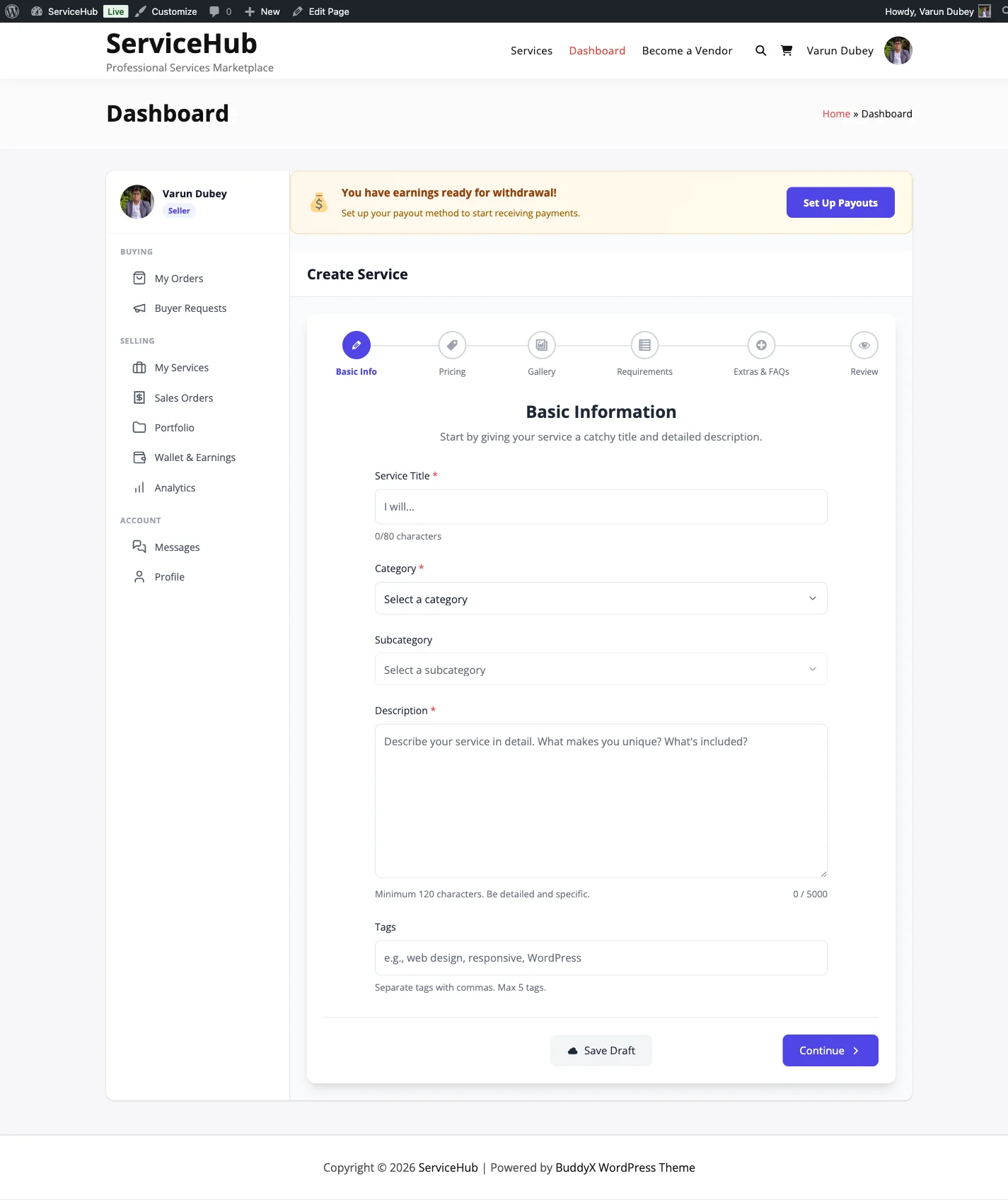
Vendors access the wizard from their Dashboard. The six steps are:
- Basic Info -- Title, category, and description
- Pricing -- Packages with prices, delivery times, and features
- Gallery -- Images and videos to showcase work
- Requirements -- Questions buyers answer before work starts
- Extras and FAQs -- Optional add-ons and frequently asked questions
- Review -- Final check before publishing
Each step can be saved as a draft at any time. A progress bar at the top shows which steps are complete.
Step 1: Basic Info#
This is where vendors describe what they are offering.
Service title -- A clear, specific headline for the service. Think "I will design a professional logo for your brand" rather than "Logo design." The title should tell buyers exactly what they will get. Keep it between 10 and 80 characters.
Category -- Choose from the service categories the site owner has created (e.g., Design, Writing, Marketing). The Category dropdown lists top-level categories only.
Subcategory -- If the category you picked has subcategories, a second dropdown appears listing them. Choosing a subcategory keeps the parent category too, so your service is found under both.
If a category has no subcategories, the second dropdown stays empty and can be skipped -- it is optional.
Description -- A detailed explanation of what the vendor delivers, their process, what is included, and what is not. This is where vendors sell their expertise. Up to 5,000 characters.
Tags -- Up to 5 keywords that help buyers find the service through search (e.g., "logo, branding, graphic design, minimalist, business").
Step 2: Pricing Packages#
Vendors set up their pricing using a 3-tier structure: Basic, Standard, and Premium. Only the Basic package is required -- Standard and Premium are optional.
Each package includes:
- Package name -- Defaults to "Basic," "Standard," or "Premium" but can be customized
- Price -- Starting from $5 minimum for the Basic package
- Delivery time -- How many days to complete the work (1, 2, 3, 5, 7, 14, 21, or 30 days)
- Revisions -- How many rounds of changes are included (0 to 5, or unlimited)
- Features list -- A checklist of what is included in this package
[PRO] When the Pro plugin is active, the recurring-services feature flag is on, and recurring services are globally enabled in Sell Services > Settings > Orders & Disputes, a Recurring Billing section appears in this step. The flag is off by default in 1.3.0, so this section is normally hidden. Vendors can toggle recurring billing on and choose a frequency (Weekly, Monthly, Quarterly, or Yearly). See Recurring Services for full details.
For a deeper look at pricing strategy, see Pricing and Packages.
Step 3: Gallery#
This is where vendors show off their work. Strong visuals make a big difference in conversions.
Main image -- Required. This is the primary image buyers see in search results and on the service page. Recommended size: 800x600 pixels.
Additional images -- Showcase more work samples. You can add up to 4 in the free version, or unlimited with [PRO].
Video embeds -- Add YouTube or Vimeo links to demo your work. 1 video in the free version, up to 3 with [PRO].
Supported image formats: JPG, PNG, GIF, and WebP. Maximum 5MB per image.
For tips on creating a great gallery, see Service Media.
Step 4: Requirements#
Requirements are questions buyers answer after purchasing, before the vendor starts working. This ensures the vendor has everything they need upfront.
Each requirement has:
- A question -- What do you need from the buyer?
- An answer type -- Short text, long text, file upload, or dropdown choices
- Required or optional -- Mark critical questions as required
You can add up to 5 requirements in the free version, or unlimited with [PRO].
Common examples:
- "What is your business name?" (short text)
- "Describe your project in detail" (long text)
- "Upload your brand guidelines" (file upload)
- "Choose your preferred style" (dropdown: Modern, Classic, Minimalist)
For more details, see Requirements and FAQs.
Step 5: Extras and FAQs#
Service Add-ons (Extras)#
Add-ons let vendors offer optional upgrades that increase order value. Buyers select these during checkout.
Types of add-ons:
- Checkbox -- Simple yes/no (e.g., "Include source files" for $20)
- Dropdown -- Pick one option (e.g., resolution: 720p, 1080p, 4K)
- Text input -- Buyer types something (e.g., "Business name for the logo")
- Quantity -- Select how many (e.g., "Extra revisions" at $10 each)
You can add up to 3 extras in the free version, or unlimited with [PRO].
For more on pricing and types, see Service Add-ons.
FAQs#
Frequently Asked Questions help buyers make purchasing decisions. Vendors add common questions and answers that appear on the service page.
Great FAQs cover:
- What is included and what is not
- Delivery timeframes
- Revision process
- Refund policy
You can add up to 5 FAQs in the free version, or unlimited with [PRO].
Step 6: Review and Publish#
The final step shows a summary of the service with a completion checklist. Before publishing, the wizard verifies:
- Service title is at least 10 characters
- A category is selected
- Description is at least 120 characters
- Basic package has a price and delivery time
- A main image is uploaded
If anything is missing, the wizard highlights what needs to be fixed.
Publishing options:
- Save Draft -- Save progress and come back later. Only the vendor and admins can see draft services.
- Publish Service -- If your marketplace has moderation turned on, the service is submitted for admin review. If moderation is off, it goes live immediately.
Tips for Creating Great Service Listings#
- Be specific in your title -- "I will design a modern logo with 3 concepts" beats "Logo design services"
- Use all available images -- Services with more visuals get more orders
- Price strategically -- Make your Standard package the best value so most buyers choose it
- Write clear requirements -- The better your intake questions, the smoother the order process
- Add FAQs proactively -- Answer the questions buyers would ask before they need to ask them
- Keep your description scannable -- Use short paragraphs and highlight key deliverables
Related Guides#
- Pricing and Packages -- How to structure your 3-tier pricing
- Service Add-ons -- Extra services and upgrades
- Service Media -- Images and videos best practices
- Requirements and FAQs -- Collecting buyer information
- Publishing and Moderation -- What happens after you hit Publish