Commission System (Global & Per-Vendor)
Earnings & WalletThe commission system controls how revenue is split between your platform and your vendors on every completed order.
The Basic Idea#
When a buyer pays for a service, you (the platform owner) keep a percentage as commission, and the vendor receives the rest. For example, with a 10% commission rate on a $100 order:
- Platform keeps: $10.00 (10%)
- Vendor earns: $90.00 (90%)
This happens automatically when an order is marked as completed. You do not need to calculate anything manually.
Setting Your Global Commission Rate#
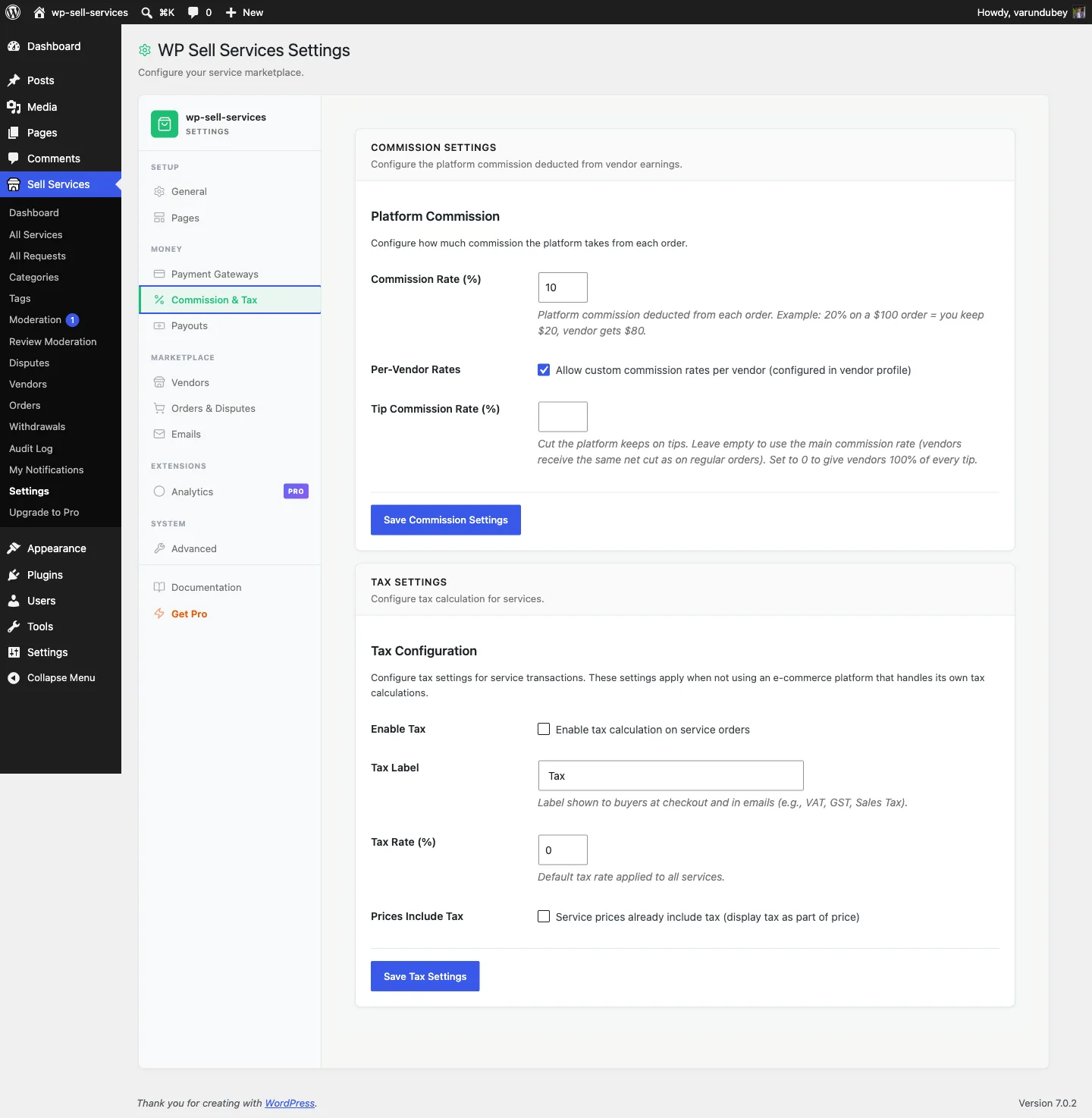
- Go to Sell Services > Settings > Commission & Tax
- Find the Commission Settings section
- Enter your Commission Rate (%) -- this can be anything from 0% to 50%
- Click Save Commission Settings
The default rate is 10%. This applies to all vendors unless you set a custom rate for specific vendors.
Per-Vendor Custom Rates#
Want to reward your top performers or offer promotional rates to new vendors? You can override the global rate for individual vendors.
- Go to Sell Services > Vendors
- Click on a vendor's name
- Find Commission Settings
- Enter a custom commission rate
- Click Update
Use cases for custom rates:
- Lower commission for high-performing vendors (loyalty reward)
- Promotional rates for new vendors (to attract talent)
- Higher rates for vendors who get extra platform support
- Special rates for partnership agreements
When a vendor has a custom rate, it always takes priority over the global rate.
When Is Commission Calculated?#
Commission is only calculated when an order reaches Completed status. Here is the typical flow:
- Buyer places order and pays
- Vendor delivers the work
- Buyer reviews and accepts the delivery
- Order status changes to Completed
- Commission is calculated and vendor earnings are credited
Until the order is completed, no money changes hands between the platform and vendor.
Commission on Add-ons and Tips#
Add-ons: Commission applies to the full order total, including any add-ons the buyer selected.
Tips: Tips are commissioned at the same rate as regular orders by default. You can change that with the Tip commission rate field in the same settings card:
| Tip commission rate | Effect |
|---|---|
| (empty) | Use the regular commission rate -- the default |
0 |
Vendors keep 100% of every tip |
| any percentage | A tip-only rate, independent of your order rate |
With the default 10% rate and no tip override:
- Order total: $100.00, tip: $10.00
- Commission on the order (10%): $10.00
- Commission on the tip (10%): $1.00
- Vendor receives: $90.00 + $9.00 tip = $99.00
Set the tip rate to 0 if you want tips to reach vendors in full:
- Vendor receives: $90.00 + $10.00 tip = $100.00
Tiered Commission Rules [PRO]#
With WP Sell Services Pro, you can set up tiered commission rules that automatically adjust rates based on criteria like order volume, vendor level, or category. This lets you create more sophisticated commission structures without manually setting rates for each vendor.
What You See in Order Details#
When you open any completed order in the admin panel, you will see a clear financial breakdown:
- Order Total: Full amount the buyer paid
- Commission Rate: Percentage applied
- Platform Fee: Your commission in dollars
- Vendor Earnings: Net amount the vendor receives
Vendors see a simplified view showing the order total and their earnings.
Refunds and Commission#
When an order is refunded, commission reverses automatically:
Full refund: Both the platform fee and vendor earnings are reversed completely.
Partial refund: Commission reverses proportionally. For example, a 50% refund on a $100 order reverses $5 of a $10 commission.
Clearance Period#
After an order is completed, vendor earnings do not become available for withdrawal immediately. There is an optional clearance period to allow time for disputes or issues. It ships at 0 days, so earnings clear as soon as the order completes. You can adjust this in Settings > Payouts.
Related Docs#
- Earnings Dashboard -- How vendors track their income
- Withdrawals -- How vendors get paid
- Automated Payouts -- Schedule automatic vendor payments
- Currency and Tax -- Financial settings