Order Messaging & File Sharing
Order ManagementEvery order includes a private conversation between the buyer and vendor. This keeps all project communication in one place and creates a clear record of everything discussed.
How It Works#
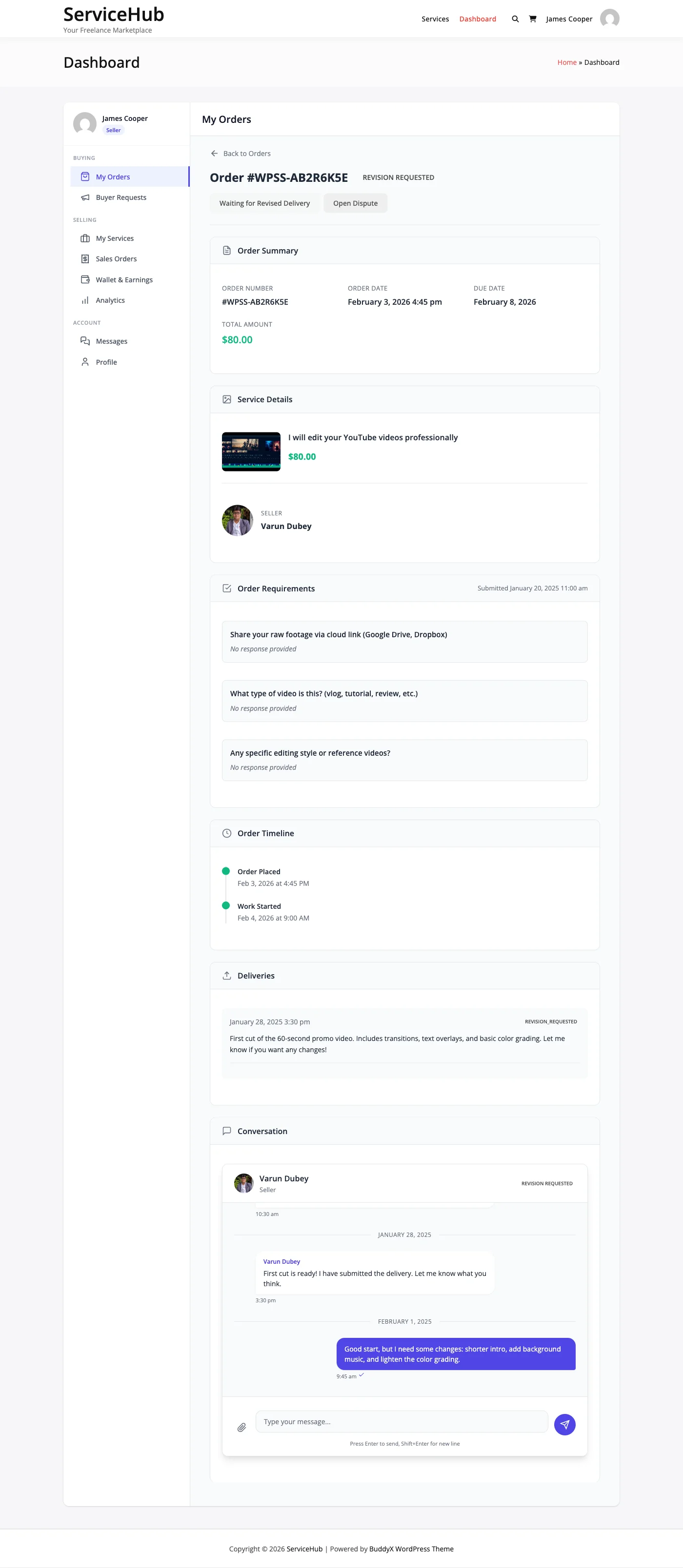
When an order is placed, a conversation is created automatically. The buyer and vendor can message each other directly from the order page in their dashboard. Admins can view these conversations but cannot participate in them -- this keeps the discussion between the two parties involved.
Sending Messages#
To send a message:
- Go to your Dashboard and open the order.
- Click the Messages tab.
- Type your message in the text area.
- Optionally attach files (documents, images, references).
- Click Send Message.
Messages can include text, file attachments, or both. You cannot send an empty message.
File Attachments#
You can attach files to your messages for sharing reference materials, work-in-progress files, or additional project details.
Supported file types include:
- Images (JPG, PNG, GIF, WebP)
- Documents (PDF, Word, Excel, PowerPoint, TXT, CSV)
- Archives (ZIP, RAR, 7Z)
- Media (MP3, WAV, MP4, MOV, AVI, WebM)
- Design files (PSD, AI, EPS, Sketch, Figma)
For security, SVG, HTML, CSS, and JavaScript files are not allowed.
File size limits depend on your WordPress server settings. For best results, use ZIP archives for large files.
Message Notifications#
When you receive a new message:
- An email notification is sent (if enabled in your settings).
- An unread badge appears on your dashboard.
- The unread count shows how many messages you have not read yet.
Messages are marked as read when you view the conversation.
When Messaging Is Available#
Messaging is active throughout the order -- from the moment it is placed until it is completed. Once an order is completed or cancelled, the conversation becomes read-only. You can still view the full history, but no new messages can be sent.
If you need to communicate after an order is finished, use the dispute system for post-completion issues or reach out to the site admin.
What Appears in the Conversation#
Besides your own messages, the conversation thread also shows:
- Delivery notifications when the vendor submits work.
- Revision requests when the buyer asks for changes.
- Status changes as the order moves through each stage.
- System messages for things like extension requests, deadline reminders, and auto-completion notices.
These system entries help both parties keep track of what is happening without having to check the order status separately.
Admin Access#
Admins can view all order conversations from Sell Services > Orders by opening any order and clicking the Messages tab. This is useful for dispute investigation and monitoring marketplace quality.
Admins can see all messages, timestamps, and attachments, but they cannot reply directly. Admin involvement should go through the dispute resolution system or direct email contact.
Tips for Good Communication#
- Respond within 24 hours -- Timely responses build trust and keep projects moving.
- Be clear and specific -- Provide detailed feedback and concrete examples.
- Stay professional -- Keep all communication courteous and on-topic.
- Use the platform -- Do not move conversations off-platform. The message history protects both parties if a dispute arises.
- Attach files when helpful -- A screenshot or reference document can prevent misunderstandings.