Earnings Ledger & CSV Export
Earnings & Wallet proPro feature. Available in WP Sell Services Pro.
[PRO] The Earnings Ledger is the vendor's source of truth for every dollar that moved through their wallet. It lives on the Wallet dashboard and mirrors, byte-for-byte, the rows the plugin writes to the wallet-transactions table. The CSV export lets vendors hand that same record to their accountant or import it into spreadsheet / accounting tools for monthly or annual reporting.
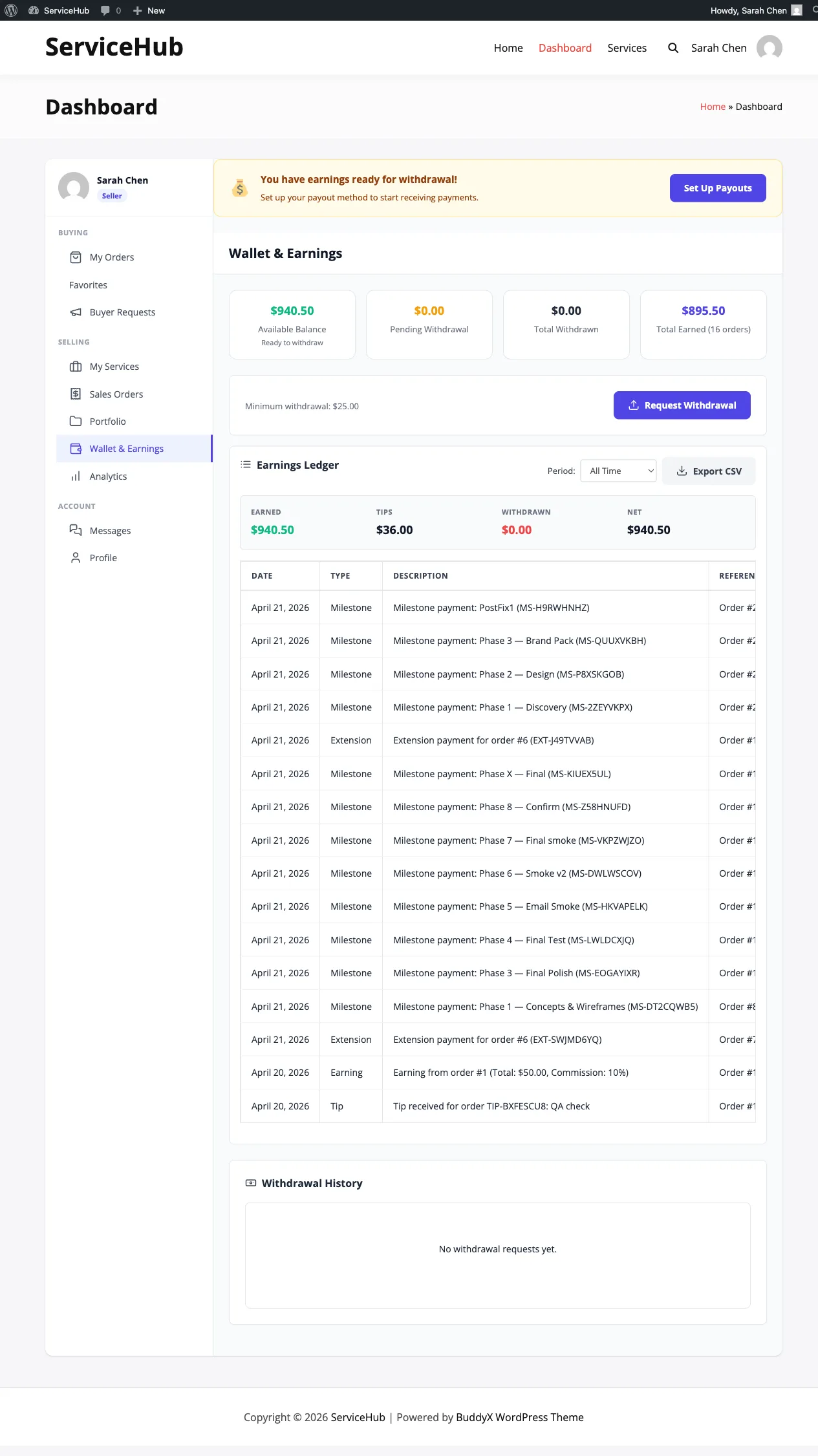
Where to find it#
The ledger is on the Wallet page in the vendor dashboard - the same page as the Available Balance and Total Earned cards. It sits below the summary cards as a dated list of every wallet transaction: earnings, tips, milestone phase payments, extension payments, and withdrawals.
The period selector#
A dropdown above the ledger scopes the view to a time window:
- Last 30 Days
- This Month
- Last Month
- This Year
- All Time (default)
Changing the selector re-filters the ledger AND the Export CSV button - whatever range you're viewing is what the export will contain. That way the CSV you download always matches the screen.
Ledger row types#
Every row carries a type so you can tell at a glance where the money came from:
| Type | What it is |
|---|---|
| Earning | A base order completed and the net vendor earnings hit the wallet. |
| Tip | A buyer sent a tip after order completion. Tips carry their own commission rate (often 0%). |
| Extension | A paid extension sub-order on a catalog order cleared. The parent order's deadline is pushed out by the quoted days. |
| Milestone | A milestone phase on a buyer-request contract was paid. One row per phase. |
| Withdrawal | Money left the wallet to a payout method. This is a debit; it shows as a negative amount in the CSV. |
| Credit / Debit | Admin manually credited or debited the wallet. |
| Dispute Refund | A dispute resolved with a refund that reversed an earlier earning. |
Earning, Tip, Extension, and Milestone are all credits. Withdrawal, Debit, and Dispute Refund are debits.
Exporting to CSV#
Click Export CSV next to the period selector. The browser downloads
a file named like earnings-ledger-<your-username>-<period>.csv.
File structure#
The file has two sections.
1. A summary block at the top, one line per value, each prefixed
with # so most accounting importers skip it or treat it as a comment:
# Earnings Ledger Export
# Vendor,Jane Doe
# Period,This Month
# Generated,2026-04-21 14:32:05
# Total Credits,1240.00
# Total Debits,400.00
# Net,840.00
# Tips Received,45.00
# Total Withdrawn,400.00
2. The row table with a column header followed by every transaction in the period, oldest first:
| Column | What it contains |
|---|---|
| Date | When the transaction was recorded (UTC, format YYYY-MM-DD HH:MM:SS). |
| Type | Human label: Earning, Tip, Extension, Milestone, Withdrawal, Credit, Debit, Dispute Refund. |
| Description | Free-text note. For order-based rows this includes the order ID and customer reference. |
| Reference | A machine-readable link like order#123, withdrawal#45, tip#67. Use this to jump back to the source row. |
| Currency | The currency the amount is in (e.g. USD). |
| Amount | The value of the transaction. Debits are negative (e.g. -400.00 for a withdrawal). Credits are positive. |
| Balance After | The running wallet balance immediately after this row. Makes the ledger reconcile itself - the last row's Balance After is your current balance. |
Rows are ordered oldest first on purpose - accounting imports and running-balance calculations expect chronological order.
Using the export with accounting tools#
The file is plain UTF-8 CSV with the standard comma delimiter and quoted fields where needed, so anything that reads CSV can consume it.
Spreadsheets (Excel, Google Sheets, Numbers)#
Open the file directly. Delete the #-prefixed summary rows if you
want just the data. The Amount column already carries the sign
(negative for debits, positive for credits), so sum formulas work
without special logic.
QuickBooks / Xero / Wave#
Most accounting tools need you to map columns during import:
- Date → transaction date
- Description → memo / description
- Amount → amount (the sign tells the tool whether it's a deposit or withdrawal)
- Reference → reference / invoice number
The Type column isn't a standard accounting field - use it to map rows into the correct income or expense account (Earning / Tip / Extension / Milestone into an "Marketplace income" account, Withdrawal into a transfer, Dispute Refund into "Refunds").
Tax reporting#
For annual tax reports, use the This Year period and sum the
Amount column (or read the summary block's Total Credits and Total
Debits). The Net figure is credits minus debits - this is the amount
that changed in your wallet during the period, which is often what you
need for self-employment tax calculations.
Why the ledger and the summary cards should match#
The Wallet page shows Available Balance and Total Earned as
summary cards. Those numbers are derived from the same ledger rows the
export streams - if the card says $1,240.00 and the summary block says
# Total Credits,1240.00, you're looking at the same data through two
different lenses. Any disagreement between the cards and the export is a
bug - please report it with a screenshot and the export file.
Admin export filters#
Administrators who export ledgers for reporting have one extra option exposed via query-arg:
?milestone_only=1appended to the export URL returns only rows whereType = Milestone. Useful for auditing milestone-contract revenue separately from base-order and tip income.
Tips#
- Export monthly rather than all-time when possible. Smaller files import faster and make it easier to spot anomalies.
- Use the Reference column to trace a specific row back to the order
or withdrawal.
order#123means parent order ID 123;tip#67is a tip sub-order ID. - If your accountant needs a different format, the CSV opens in any spreadsheet tool where you can re-save as XLSX or re-arrange columns before handing it over.