In-App Notification System
Notifications & EmailsEvery important event in your marketplace triggers an in-app notification so users never miss an update, even if they do not check their email.
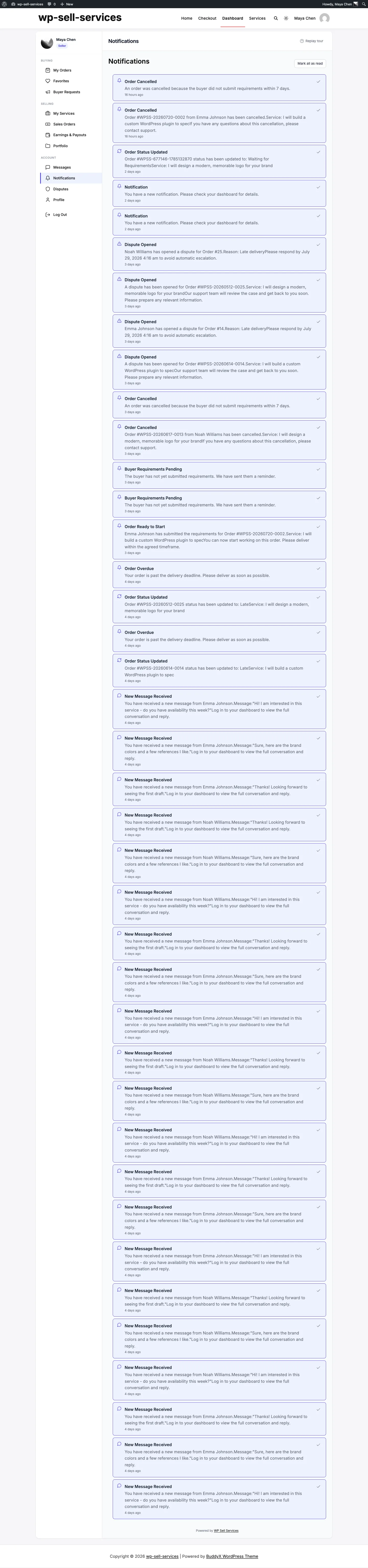
How It Works#
The dashboard's Notifications menu item shows an unread count badge. When something happens -- a new order, a message, a delivery, a review -- a notification is created instantly. Users click the bell to see their alerts and navigate directly to the relevant page.
Notifications in WooCommerce My Account#
When WooCommerce handles checkout and WP Sell Services Pro is active, buyers and vendors also get a Service notifications tab in My Account (/my-account/service-notifications/). It shows the same list, filters and Mark all as read as the dashboard.
What Triggers Notifications#
Notifications are created for all major marketplace events:
- New order placed
- Order status changes (in progress, delivered, completed, cancelled)
- New message received in an order conversation
- Delivery submitted by vendor
- Delivery accepted by buyer
- Revision requested by buyer
- Review received from a buyer, and a review reply to the buyer
- Dispute opened, escalated, cancelled or resolved
- Withdrawal requested, approved, paid or rejected
- Service approved or sent back for changes
- Tip received (vendor) and tip receipt (buyer)
- Buyer request expired
- Vendor account approved, rejected or suspended
- Refund needs attention (every administrator, when a gateway refund fails or must be sent by hand)
These in-app notifications are always created, regardless of whether email notifications are enabled or disabled. They are independent systems.
Viewing Notifications#
From the dashboard, open Notifications in the menu. Each notification shows:
- An icon indicating the type of event
- A brief message describing what happened
- A relative timestamp (e.g., "2 minutes ago")
- A link to the relevant order, message, or page
Use the two drop-downs above the list to show only unread notifications, one type of notification, or both. The page numbers keep your filter.
Managing Notifications#
Mark as Read#
Click on any notification or use the "Mark as Read" link to clear it from your unread count.
Mark All as Read#
Click the Mark All as Read button at the top of the notification list to clear all unread notifications at once.
Automatic Cleanup#
Read notifications are deleted after 90 days by a daily background job. Unread notifications are never deleted. Dispute and completed-delivery notices are kept for a year once read. Developers can change the 90 days with the wpss_notification_retention_days filter (return 0 to keep everything).
The Unread Badge#
The Notifications menu item shows a number badge indicating how many unread notifications you have. This count updates as new events occur and decreases as you read or dismiss notifications.
Notifications vs. Email#
In-app notifications and email notifications work independently:
| Feature | In-App | |
|---|---|---|
| Always created | Yes | Only if admin enables the type |
| Requires login to see | Yes | No -- delivered to inbox |
| Can be marked as read | Yes | No |
| Stored in dashboard | Yes | No -- lives in email inbox |
| Links directly to relevant page | Yes | Yes |
Disabling an email notification type does not affect in-app notifications. Users will still see the alert in their dashboard.
Push Notifications to Phones [PRO]#
A member with your mobile app installed can be notified on their phone for the same events they already receive in the app. Nothing new to decide about what gets sent - push follows the notifications you already have.
Off by default, and it needs credentials before it will send anything.
Setting it up#
- Create a Firebase project at console.firebase.google.com and generate a service account key - a JSON file Google gives you once.
- Go to Sell Services > Settings > Integrations.
- Paste the JSON into the push notification credentials field and enable it.
- Save.
Firebase relays to Apple's service for iOS, so one credential covers Android, iOS and web. You do not need a separate Apple key.
What to expect#
- A member's device registers itself when they sign in on the app. Nothing for them to configure.
- A device that uninstalls the app or rotates its token is dropped automatically, so you are not paying for delivery attempts to phones that no longer exist.
- The credential is stored masked. Re-saving settings without retyping it keeps the existing one rather than blanking it.
Before you rely on it#
Push has been verified as far as the request this plugin sends. What Google does with a valid-looking request has not been tested against a real handset. Send yourself a test on a real phone before telling members the feature exists.
Tips#
- Check notifications regularly. The dashboard bell is the quickest way to stay on top of orders, messages, and reviews.
- Use email for time-sensitive items. If you need to respond quickly (like a new order or message), make sure those email types are enabled so vendors and buyers get immediate alerts.
- Do not ignore the unread badge. A growing badge count usually means there are actions that need your attention.