Real-Time Updates (Live Messages & Notifications)
Notifications & EmailsReal-time updates tell a logged-in user the moment a new order message or notification arrives, with a short on-screen alert and a live unread count on the dashboard menu. They do not insert the message into an open conversation: the thread shows it on the next load. This feature is disabled by default and requires a WebSocket connection you configure.
How It Works#
When enabled, the plugin opens a private, authenticated WebSocket channel for each logged-in user. Two events are delivered live:
message.created-- A short alert shows the start of the new message. The conversation thread itself does not change until you reload it.notification.created-- A short alert shows the notification and the unread count on the dashboard Notifications menu item goes up by one, without a reload.
When disabled, the marketplace behaves exactly as before -- messages and notifications appear on the next page load or navigation. No third-party connection is made in disabled state.
Enabling Real-Time Updates#
- Go to Sell Services > Settings
- Click the Integrations tab
- Find the Real-time (WebSockets) card
- Toggle Enable to on
- Fill in the connection fields (see below)
- Save settings
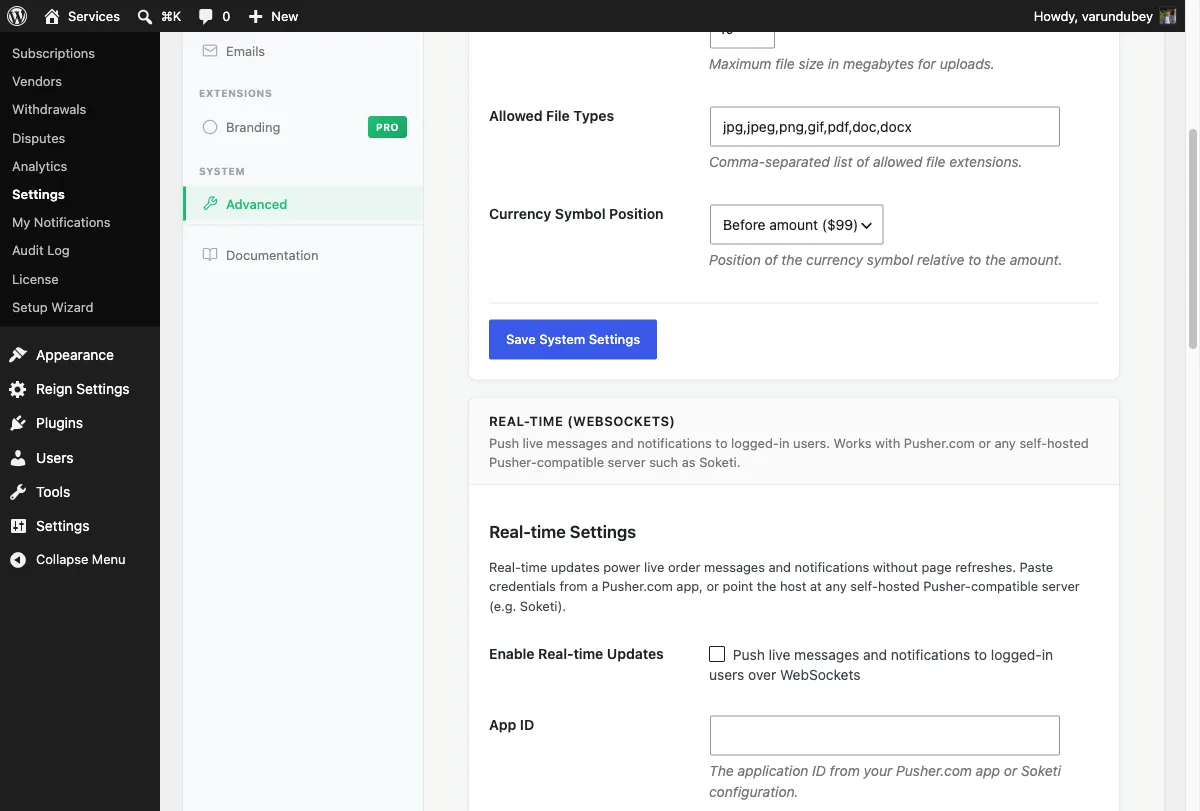
Connection Options#
The plugin speaks the Pusher protocol. You can connect to either a hosted service or your own server -- the settings fields are the same for both.
Option 1: Pusher.com (Hosted)#
- Create a free account at pusher.com and create a new Channels app
- Copy your App ID, Key, Secret, and Cluster from the Pusher dashboard
- Paste them into the settings fields
- Leave the Host field blank -- the plugin connects to Pusher.com automatically
Option 2: Self-Hosted (Soketi or Compatible Server)#
Soketi is a free, open-source, self-hostable Pusher-compatible server.
- Set up your Soketi instance and note the App ID, Key, and Secret you configured on it
- Paste those credentials into the settings fields
- Enter your server's hostname in the Host field (e.g.,
wss-server.example.com) - Set the Port to match your server (default
443) - Ensure Use TLS is on if your server uses HTTPS/WSS
Settings Reference#
| Field | Default | Description |
|---|---|---|
| Enable | Off | Activates the WebSocket layer |
| App ID | -- | Your Pusher / Soketi App ID |
| Key | -- | Your Pusher / Soketi Key (sent to browser) |
| Secret | -- | Your Pusher / Soketi Secret (server-only, stored masked) |
| Host | Blank | Leave blank for Pusher.com; enter hostname for self-hosted |
| Cluster | mt1 |
Pusher.com cluster (ignored for self-hosted) |
| Port | 443 |
WebSocket port |
| Use TLS | On | Connect over WSS (recommended) |
Note on the Secret field: once saved, the secret is displayed as masked dots. Leave the field blank when saving other settings to keep the existing secret value.
Security#
- The App Secret never leaves the server and is never sent to the browser.
- WebSocket channels are private and per-user. A buyer or vendor only receives events for their own account.
- Order message events are only delivered to participants of that specific order (buyer, vendor, and admins).
- Private channel subscriptions are authorized server-side via
POST /wpss/v1/realtime/authafter an ownership check.
How It Behaves for Users#
Buyers and vendors do not need to configure anything. When real-time is active and they are logged in:
- A new order message shows a short alert with its first words. Reload the conversation to read it in the thread.
- A new notification shows a short alert and raises the unread count on the dashboard Notifications menu item without a page reload.
Developers can react to the same events: the browser fires wpss:realtime:message and wpss:realtime:notification on document with the event payload as detail.
Real-time only works for logged-in users. Guests are unaffected.
Privacy Note#
When real-time is enabled, message and notification metadata transits the configured WebSocket provider.
- Pusher.com is a third-party service with its own data processing terms. Review their privacy policy if this matters for your site's compliance.
- Self-hosted Soketi keeps all traffic on infrastructure you control. No data leaves your servers.
Troubleshooting#
Live updates are not appearing
- Confirm the Enable toggle is on and all credentials (App ID, Key, Secret) are filled in.
- The user must be logged in -- real-time is not active for guests.
- Open your browser's developer console and look for WebSocket connection errors.
Pusher.com not connecting
- Confirm the Cluster field matches the cluster shown in your Pusher app dashboard (e.g.,
us2,eu,mt1). - Confirm your Pusher app is in Channels mode (not Beams).
Self-hosted server not connecting
- Confirm the Host field contains only the hostname (e.g.,
wss-server.example.com), not the full URL. - Confirm the Port is open and reachable over TLS from the browser.
- Check that your Soketi instance is running and its credentials match what you entered.
Related Guides#
- In-App Notification System -- Dashboard bell and notification list
- Order Messaging & File Sharing -- How order conversations work
- System Settings -- Full System tab reference