Vendor Dashboard Overview
Vendor SystemThe dashboard is where vendors and buyers manage everything -- orders, services, messages, earnings, and profile settings. It adapts based on your role, showing buying features to everyone and selling features to vendors.
Dashboard Sections#
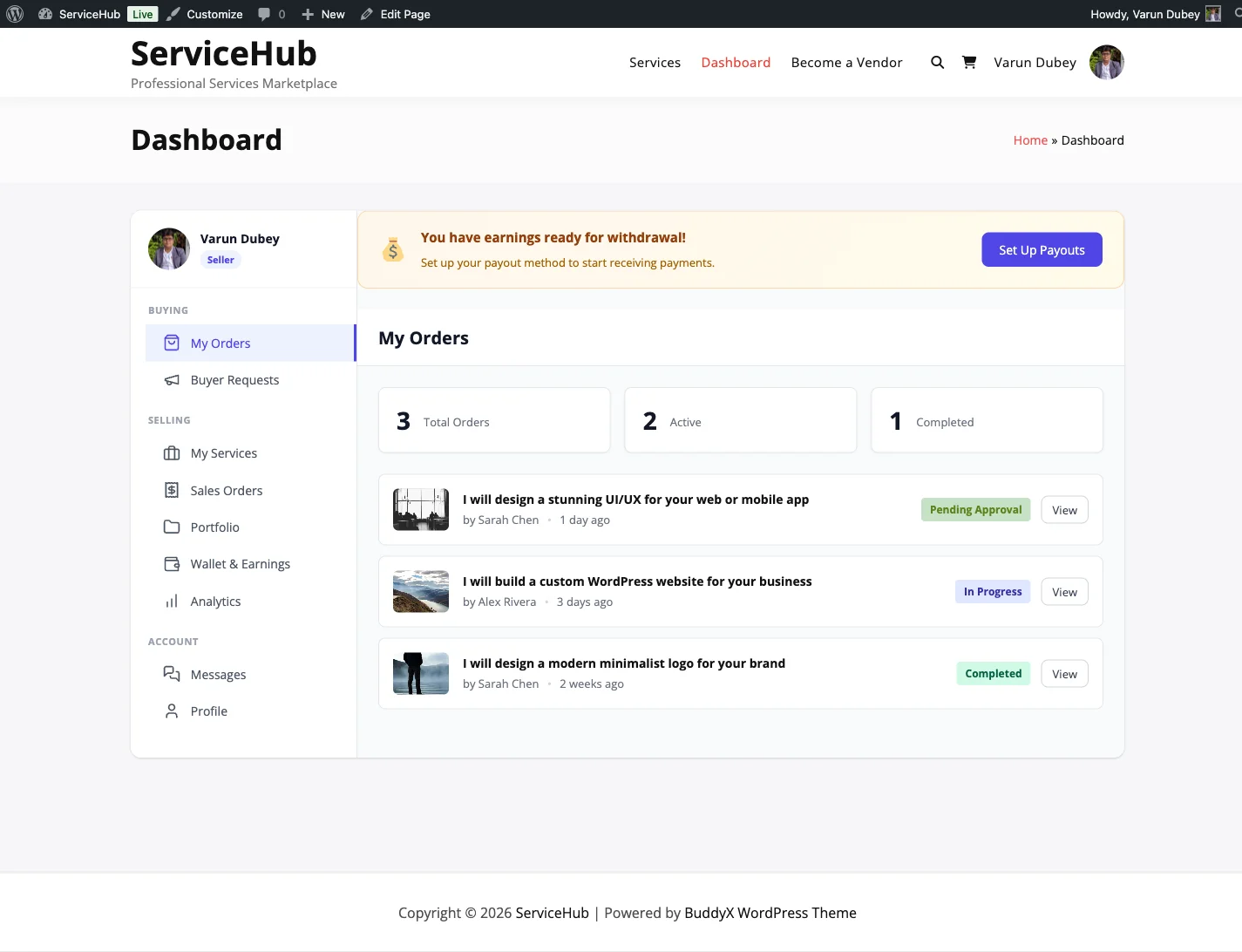
My Orders (Buyer View)#
Track the services you have purchased. You can see each order's status, the vendor, the total amount, and the date. Filter by active, completed, or cancelled to find what you need quickly.
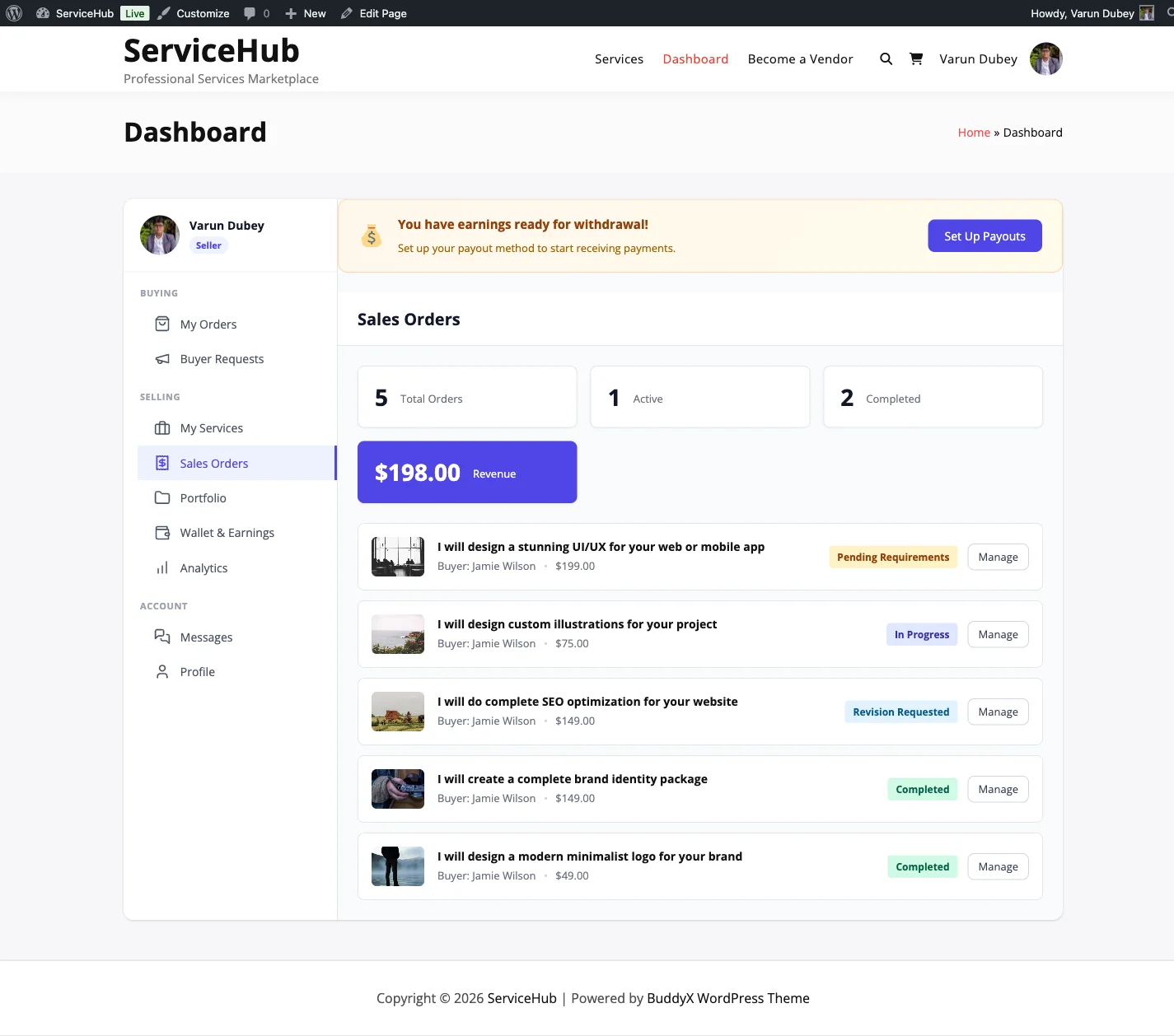
Sales Orders (Vendor View)#
This is where vendors manage incoming orders from buyers. Each entry shows the order number, buyer name, service purchased, your earnings, delivery deadline, and current status.
From here you can:
- View order details
- Submit a delivery
- Message the buyer
- Request a deadline extension
My Services (Vendor View)#

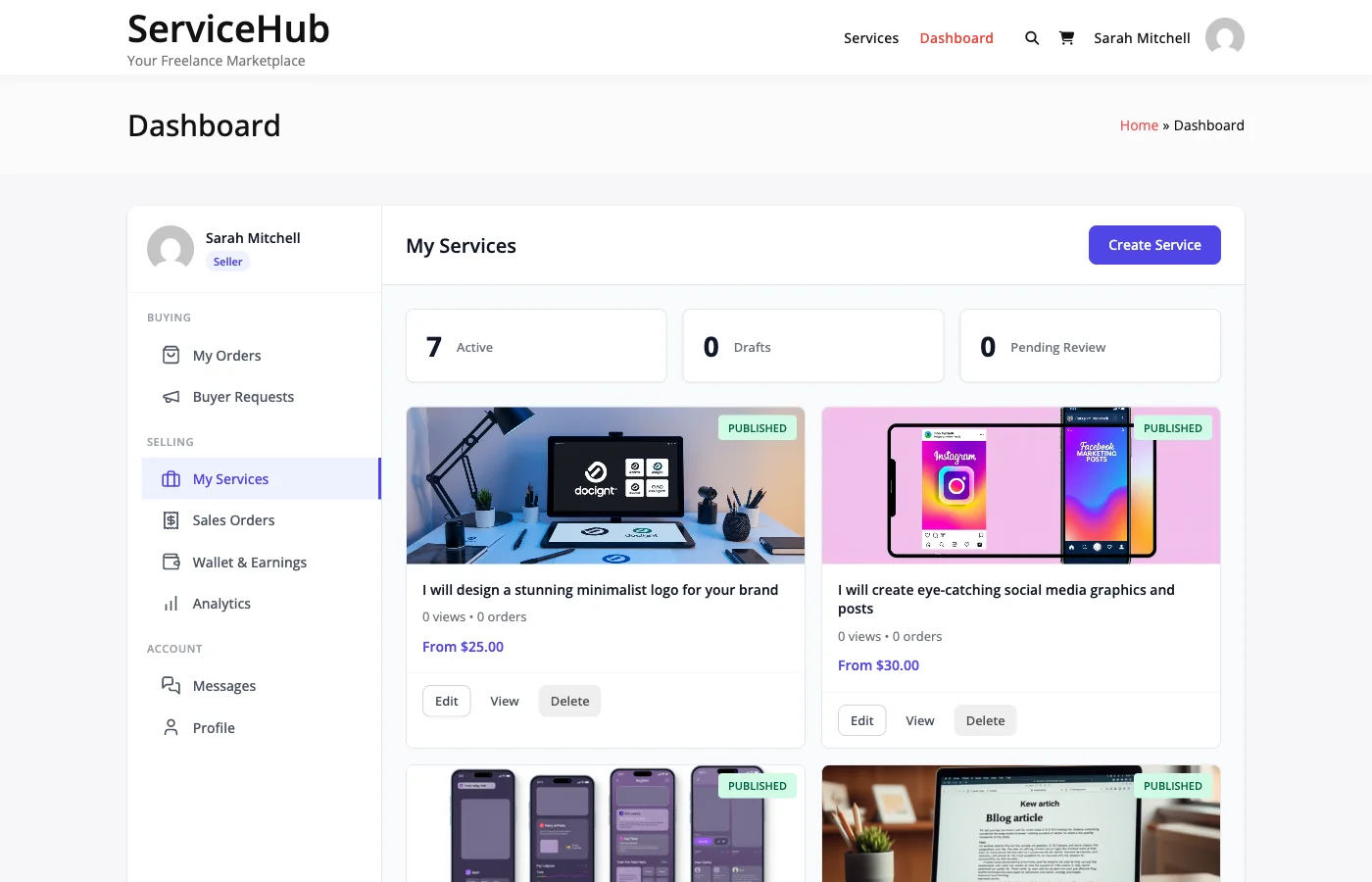
Select a tile to list only the services in that status.
Create and manage your service listings. You can see each service's title, status (Published, Draft, or Paused), price range, total orders, average rating, and active order count.
Available actions:
- Create a new service using the button in the header.
- Edit an existing service to update pricing or details.
- Pause or activate a service to control its availability.
- Delete a service (only if there are no active orders).
Buyer Requests#
Browse service requests posted by buyers looking for help. Vendors can submit proposals to these requests, and buyers choose which vendor to hire. This section is available to both buyers (for posting) and vendors (for responding).
Earnings#
Your financial dashboard showing:
- Total Earnings -- Lifetime gross income.
- Pending Earnings -- Income still in the clearance period.
- Available for Withdrawal -- What you can withdraw right now.
- Withdrawn Amount -- What you have already taken out.
Each completed order shows the buyer's total, the platform commission deducted, and your net earnings.
Messages#
All order conversations in one place. You can see which messages are unread, switch between conversations, and send replies with file attachments. Messages are organized by order, so everything stays in context.
Profile#
Edit your public vendor profile -- your display name, tagline, bio, avatar, cover image, location, website, and social links. Buyers see this information on your public profile and service pages.
How to Navigate#
The dashboard uses a sidebar with grouped navigation:
- Buying section: My Orders, Buyer Requests
- Selling section: My Services, Sales Orders, Earnings, Portfolio
- Account section: Messages, Profile
Your profile avatar and name appear at the top of the sidebar, along with a "Vendor" badge if you are a vendor. Click any section to switch views -- the active section is highlighted.
Start Selling Button#
If you are logged in but not yet a vendor, you will see a "Start Selling" button in the sidebar. Clicking it registers you as a vendor (subject to the registration mode your admin has set), and the vendor sections appear immediately.
Works on Every Device#
The dashboard is fully responsive:
- Desktop -- Full sidebar navigation with all sections visible.
- Tablet -- Collapsible sidebar that slides in and out.
- Mobile -- Hamburger menu for compact navigation.
Quick Tips#
- Check your dashboard daily to stay on top of new orders and messages.
- Use the status filters in Orders and Sales to find what you need quickly.
- Bookmark specific sections (each one has its own URL) for fast access.
- Enable email notifications so you never miss an important update.