Setting Up S3, GCS & DigitalOcean Spaces
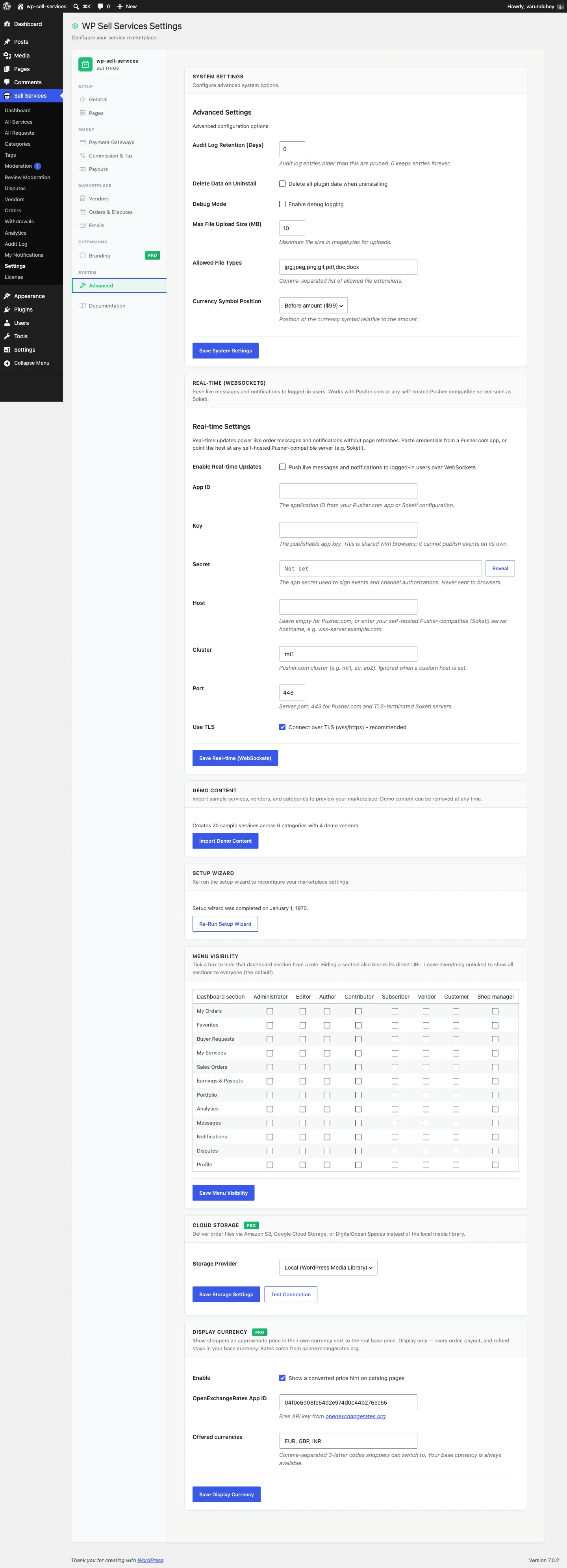
Cloud Storage proPro feature. Available in WP Sell Services Pro.
Connect your marketplace to Amazon S3, Google Cloud Storage, or DigitalOcean Spaces for scalable, fast file delivery.
Before You Start#
You will need:
- WP Sell Services Pro active and licensed
- An account with your chosen cloud provider
- Access credentials (API keys or service account) from the provider
Amazon S3#
Step 1: Create an S3 Bucket#
- Sign in to the AWS Console
- Go to S3 and click Create Bucket
- Choose a bucket name (e.g., "yoursite-deliveries") and region
- Keep the default security settings (block public access)
- Click Create Bucket
Step 2: Create Access Keys#
- Go to IAM > Users > Add User
- Create a user with programmatic access
- Attach the AmazonS3FullAccess policy (or a custom policy limited to your bucket)
- Save the Access Key ID and Secret Access Key
Step 3: Configure in WP Sell Services#
- Go to Sell Services > Settings > Integrations
- Select Amazon S3 as the provider
- Enter your Access Key ID, Secret Access Key, bucket name, and region
- Click Test Connection to verify
- Save Changes
Google Cloud Storage#
Step 1: Create a Storage Bucket#
- Sign in to the Google Cloud Console
- Go to Cloud Storage > Buckets > Create
- Choose a bucket name and location
- Set access control to "Uniform"
- Click Create
Step 2: Create a Service Account#
- Go to IAM & Admin > Service Accounts > Create Service Account
- Give it a name like "wpss-storage"
- Grant the Storage Object Admin role
- Create a JSON key and download it
Step 3: Configure in WP Sell Services#
- Go to Sell Services > Settings > Integrations
- Select Google Cloud Storage as the provider
- Upload or paste your service account JSON key
- Enter your bucket name
- Click Test Connection to verify
- Save Changes
DigitalOcean Spaces#
Step 1: Create a Space#
- Sign in to the DigitalOcean Control Panel
- Go to Spaces and click Create a Space
- Choose a datacenter region
- Give it a name (e.g., "yoursite-deliveries")
- Click Create a Space
Step 2: Generate API Keys#
- Go to API > Spaces Keys > Generate New Key
- Save the Key and Secret
Step 3: Configure in WP Sell Services#
- Go to Sell Services > Settings > Integrations
- Select DigitalOcean Spaces as the provider
- Enter your Key, Secret, Space name, and region
- Click Test Connection to verify
- Save Changes
After Setup#
Deliveries go to your bucket once a provider is active. A delivery or requirement file uploads to the provider you selected, and the local copy is removed afterwards so you are not paying for the bucket and the disk both.
Buyers and vendors never get a bucket URL. They download through a permission-checked link on the order, which hands out a short-lived signed URL after confirming they are a party to that order.
Test It#
Upload a delivery on a real order, then check your bucket: the file appears
under wpss/{order_id}/delivery/. That is the end-to-end check.
Test Connection on the settings card verifies credentials, region and permissions on their own, which is the faster check when you are first setting up.
Fallback Behavior#
The upload endpoint falls back to the media library when the provider is set to Local or is not registered. If a configured provider fails -- bad credentials, network error -- it returns an error rather than silently writing locally, so a broken bucket cannot look like a working one.
There is no admin warning for a failing provider today. Watch for it in your own integration's error handling.
Choosing a Provider#
| Factor | Amazon S3 | Google Cloud | DigitalOcean Spaces |
|---|---|---|---|
| Pricing | Pay per use | Pay per use | $5/month flat start |
| Ease of setup | Moderate | Moderate | Simple |
| CDN included | Extra (CloudFront) | Extra (Cloud CDN) | Included |
| Best for | Large, global marketplaces | Asia-Pacific focus | Small to medium marketplaces |
| S3-compatible | Yes (native) | No | Yes |
Troubleshooting#
"Connection failed" when testing? Double-check your credentials (access key, secret, bucket name, region). Make sure the bucket exists and the credentials have permission to read and write to it.
Files not uploading to cloud? Check that cloud storage is selected as the active provider in settings. Also verify your server can make outbound HTTPS connections (some hosting providers block them).
Slow downloads? Enable the CDN option for your provider. S3 uses CloudFront, GCS uses Cloud CDN, and DigitalOcean Spaces includes a CDN by default.