Email Configuration & Customization
Notifications & EmailsSet up how your marketplace sends email notifications, test deliverability, and optionally customize branding.
Accessing Email Settings#
- Go to Sell Services > Settings > Emails
- You will see toggles for each email notification type and delivery options
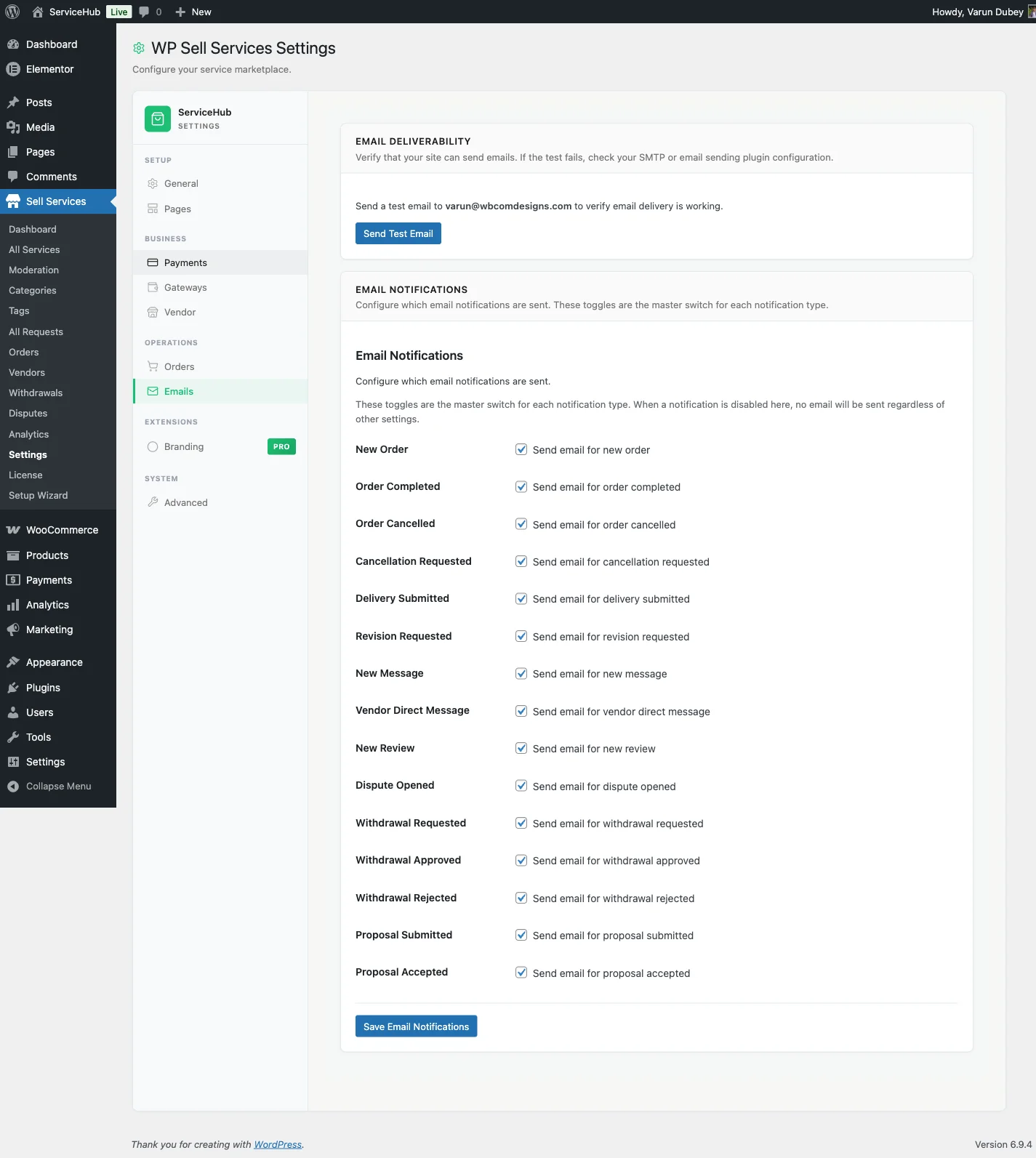
Notification Toggles#
Each email notification type has its own on/off switch. When you disable a notification type, no emails of that kind are sent to any user. In-app notifications are unaffected.
All toggles are enabled by default. Changes take effect immediately after saving.
What Members Can Turn Off Themselves#
You control which emails the site sends. Each member controls which of those they want to receive, from Dashboard > Profile > Email Preferences.
The categories a member sees depend on what they actually do on your marketplace. A buyer is offered the five that apply to them - orders, messages, deliveries, reviews and disputes. Someone who also sells sees eight, adding the seller-side categories: tips and withdrawals.
Emails about payments, proposals, milestones and extensions are always sent. They carry an amount or a deadline, so there is no switch for them, and the Email Preferences screen says so.
That matters more than it sounds. Before 1.6.0 every member was offered the vendor list, so a buyer who unticked things they did not recognise could accidentally mute notifications about their own orders.
Two things a member cannot turn off, by design:
- Anything about money moving - a payment taken, a refund issued, a withdrawal paid.
- Anything about account security.
Those arrive regardless, because a marketplace that lets someone opt out of being told their money moved is not one people can trust.
Not Emailing Someone Who Is Already Reading#
By default the plugin does not email a member about a new message while they are actively using the site - they are already looking at it, and the email arrives as noise a few seconds later.
Two settings under Sell Services > Settings > Emails > Message Email Delivery control this:
- Do not email a message to someone who is browsing the site right now - on by default. Turn it off on a quiet site where presence data is sparse and members report missing message emails.
- Hold message emails for - minutes to wait before sending. When the wait is
over the email goes out only if the conversation is still unread.
0sends immediately.
Developers can also change the behaviour with the wpss_skip_message_email_when_online
and wpss_presence_window filters - see the
Hooks & Filters reference.
Send Test Email#
Use the test email feature to verify that your site can successfully send emails.
- Go to the Emails settings tab
- Click Send Test Email
- Check your inbox (and spam folder)
If the test email does not arrive, your server's email configuration needs attention. See the SMTP section below.
Setting Up SMTP (Recommended)#
By default, WordPress sends emails through your server's built-in mail function. This works, but emails often end up in spam folders or are not delivered at all -- especially on shared hosting.
For reliable email delivery, install an SMTP plugin and connect it to a proper email service.
Recommended SMTP Plugins#
- WP Mail SMTP -- The most popular option, supports all major providers
- FluentSMTP -- Clean interface, Amazon SES support
- Post SMTP -- Advanced features with detailed delivery logging
Why SMTP Matters#
- Emails are authenticated (SPF, DKIM) so they pass spam filters
- Delivery tracking lets you see if emails were sent successfully
- Works with services like Gmail, SendGrid, Mailgun, Amazon SES, and more
- Dramatically improves the chance that buyers and vendors actually see your notifications
Once you install and configure an SMTP plugin, all WP Sell Services emails automatically route through it. No additional setup needed on the marketplace side.
WooCommerce Email Integration#
If you are using WooCommerce as your e-commerce platform (Pro feature), marketplace emails can integrate with WooCommerce's email system:
- Marketplace emails inherit your WooCommerce email template and branding
- Configure subject lines and content at WooCommerce > Settings > Emails
- Works with WooCommerce email customizer plugins
- Provides a consistent look across all your store and marketplace emails
The settings page will show a notice about WooCommerce email integration when WooCommerce is active.
White-Label Email Branding [PRO]#
With the Pro version, you can fully customize the email appearance to match your brand:
- Replace the default header with your logo and brand colors
- Customize the footer text and links
- Set a custom "From" name and address
- Create a consistent branded experience across all marketplace communications
Troubleshooting#
Emails not arriving at all?
- Send a test email from the settings page
- Test WordPress email separately (try resetting a password)
- Install an SMTP plugin -- this fixes most delivery problems
- Check your spam/junk folder
Emails going to spam?
- Use an SMTP plugin with proper authentication (SPF, DKIM, DMARC)
- Send from your own domain email address (not Gmail or Yahoo)
- Test your email score at mail-tester.com
Getting duplicate emails?
- Check if another notification plugin is also sending emails for the same events
- Verify each notification type is only enabled once in settings
Related Guides#
- Email Notification Types -- Full list of all email notification types
- In-App Notifications -- Dashboard notification system