General Settings (Platform Name, Currency)
Platform SettingsConfigure the basics of your marketplace -- your platform name, currency, and which e-commerce system powers your checkout.
Platform Name#
Give your marketplace a custom name that appears throughout the platform: in emails, page headers, notifications, and payment receipts.
- Go to Sell Services > Settings > General
- Enter your marketplace name in the Platform Name field
- Click Save Changes
Default: Your WordPress site name is used if no custom name is set.
Examples: "Creative Hub Marketplace", "Expert Services Network", "DesignPro Market"
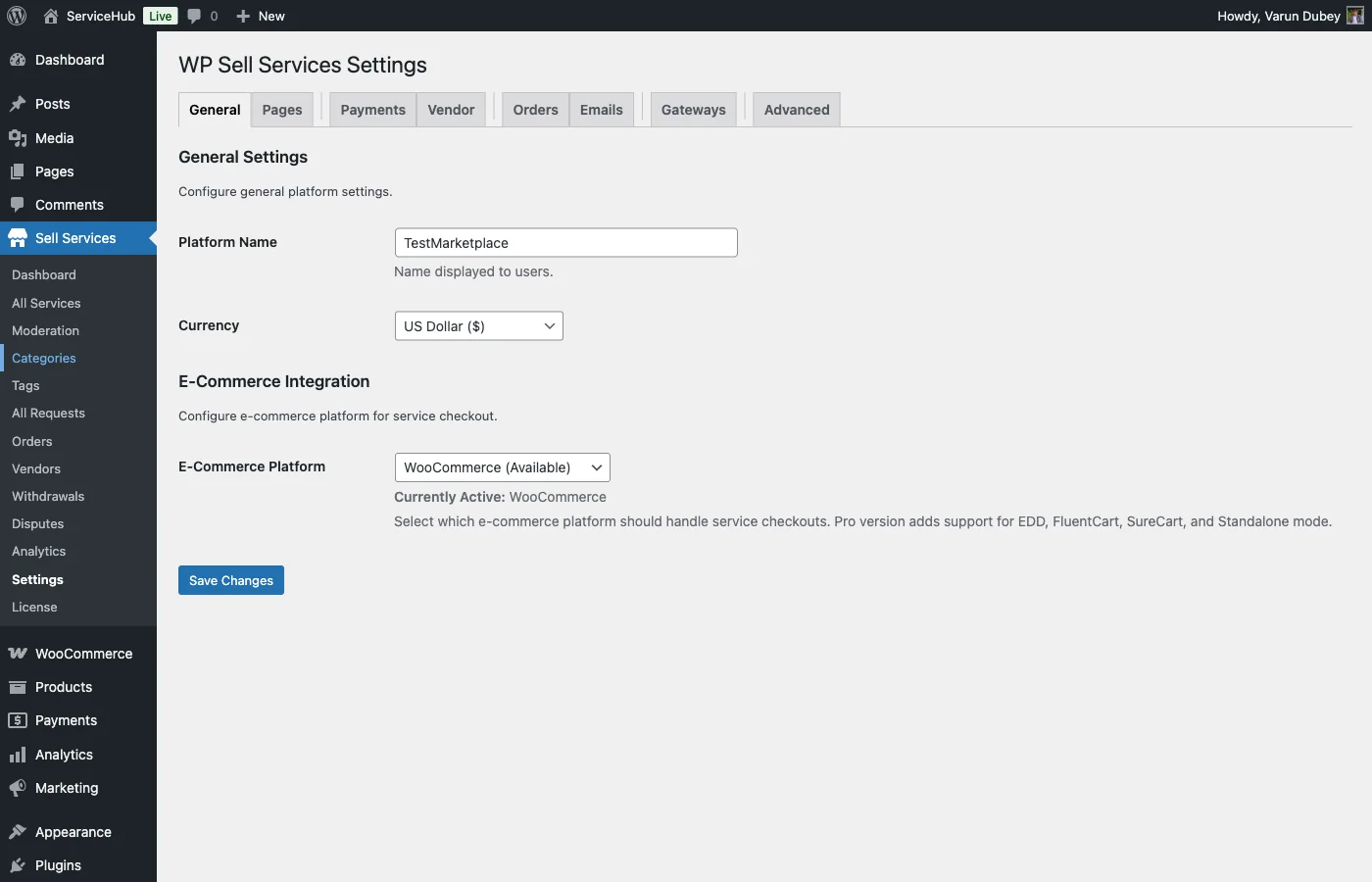
Currency#
Choose the currency for all transactions on your marketplace. This affects how prices are displayed on services, how orders are totaled, and how vendor earnings are calculated.
Supported Currencies#
The marketplace supports 148 currencies. See the full list with codes, symbols and decimal places; it is generated from the plugin, so it is always current.
Setting Your Currency#
- Go to General Settings
- Select your currency from the dropdown
- Click Save Changes
Default: USD (US Dollar)
Your entire marketplace operates in one currency. All service prices, order totals, and vendor earnings use the same currency. Payment gateways handle any conversion on their end if a buyer pays from a different region.
Tip: Set your currency during initial setup. Changing it later can create confusion since existing service prices stay at their original numbers.
[PRO] Multi-currency support is available in the Pro version -- currency detected from the shopper's timezone, live exchange rates, and localized price displays.
E-Commerce Platform#
Choose which system handles your marketplace checkout and payments.
Available Options#
| Platform | Availability |
|---|---|
| Standalone (built-in checkout) | Free -- no extra plugins needed |
| WooCommerce | [PRO] |
| Easy Digital Downloads | [PRO] beta, listed only when the wpss_pro_beta_rails filter returns true |
| FluentCart | [PRO] beta, listed only when the wpss_pro_beta_rails filter returns true |
Auto-Detect (Recommended)#
The default setting automatically detects which platform is available and uses it. For most sites, this is the best choice.
- If only the free plugin is active, it uses the built-in Standalone checkout
- If Pro is active and WooCommerce (or another supported platform) is installed, it uses that platform
Standalone Mode (Free)#
The free version includes a complete built-in checkout system with Stripe, PayPal, and Offline payment support. No WooCommerce or any other e-commerce plugin is required. This is the simplest setup -- perfect if you want a clean, lightweight marketplace.
WooCommerce and Other Platforms [PRO]#
The Pro version lets you plug into WooCommerce, Easy Digital Downloads or FluentCart. This is useful if you already have an online store and want your marketplace orders to flow through the same checkout and payment system.
Switching Platforms#
You can change platforms at any time under Settings > General. Keep in mind:
- Existing orders stay with the original platform
- New orders use the new platform
- Payment gateway settings may need reconfiguration
- Test the checkout flow on a staging site before switching on a live marketplace
Site cart link#
Only appears when WooCommerce is active and the marketplace takes payment itself. When WooCommerce handles checkout its cart holds the order, so there is nothing to choose.
With WooCommerce installed there are genuinely two carts: WooCommerce's /cart/
and the marketplace's /service-cart/. That split is deliberate -- the
marketplace does not take over WooCommerce's cart page. The question this
setting answers is which one your theme's cart icon points at.
You usually do not need to touch it. The default is worked out for you:
| Your setup | Where the theme's cart link goes |
|---|---|
| WooCommerce is handling checkout | WooCommerce's cart -- it holds the order |
| Marketplace checkout, and you sell no WooCommerce products | The marketplace cart |
| Marketplace checkout, and you do sell WooCommerce products | WooCommerce's cart -- two real shops, so you decide |
Tick it to always use the marketplace cart. Left unticked, the plugin decides as in the table. The third row is the one worth knowing about: if you sell both services and WooCommerce products, only you can say which cart the header should serve, so the plugin leaves it alone until you tick the box.
If buyers report adding a service and then finding an empty cart, this is the setting -- turn it on.
Troubleshooting#
Platform name not updating everywhere? Clear all caches (site, theme, hosting, CDN) after saving. Some email templates may cache the old name.
Currency symbol not displaying? Check that your database uses UTF-8 encoding and your theme supports special characters.
E-commerce platform not detected? Make sure the platform plugin (e.g., WooCommerce) is installed and activated. Refresh the WP Sell Services settings page after activating it.