Stripe Connect Split Payments
Payments & Checkout proPro feature. Available in WP Sell Services Pro.
Stripe Connect pays vendors their share automatically at checkout. No manual payouts, no withdrawal queue, no money sitting in your account waiting to be forwarded.
It uses Stripe Connect Express: each vendor completes a short Stripe-hosted onboarding to connect their bank account. Stripe handles their identity and compliance checks, so you never collect or store vendor bank details.
How it works#
- You enable Stripe Connect once, using the Stripe keys you already configured.
- Each vendor connects their own Stripe account from their dashboard.
- When a buyer pays, Stripe splits the charge: your platform fee stays with you, the remainder goes straight to the vendor's Stripe account.
- Stripe pays the vendor out on their own Stripe payout schedule.
Setup#
No extra API keys are needed. Stripe Connect uses the same platform keys already set up for Stripe payments -- there is nothing new to paste.
- Enable Connect in your Stripe Dashboard if you have not already.
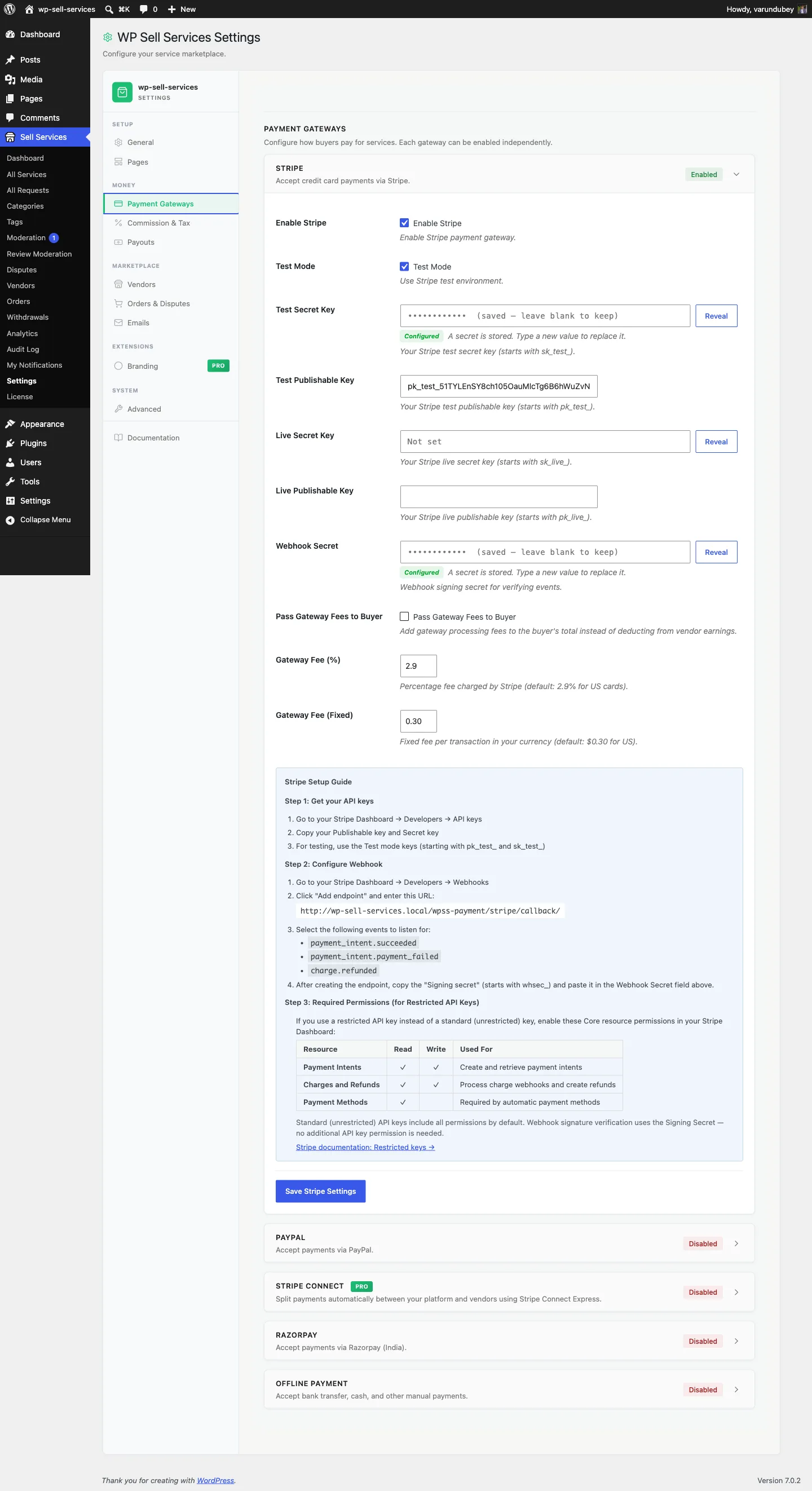
- In WordPress, go to Sell Services > Settings > Payment Gateways.
- Make sure the Stripe card is configured with your keys.
- Find the Stripe Connect card below it and tick Enable Stripe Connect.
- Set the Platform Fee (%) -- or leave it blank to use your normal commission rate.
- Click Save Connect Settings.
- Add the webhook endpoint shown on the settings screen to Stripe, covering payment and account events.
Platform fee vs commission#
The Platform Fee (%) field is the percentage you retain from each payment before the remainder transfers to the vendor.
Leave it blank and Connect uses your ordinary commission resolution -- global rate, per-vendor override, or a tiered rule. That is usually what you want, so one number governs every rail. Set it only when Connect charges should differ deliberately from the rest of your marketplace.
See Commission System and Tiered Commission Rules.
Vendor onboarding#
Once Connect is enabled, vendors see a Connect with Stripe option in their dashboard. Clicking it sends them to Stripe's hosted onboarding, where they supply their identity and bank details directly to Stripe.
You can watch progress under the Connected Vendor Accounts table on the Connect settings screen, which lists each vendor's Stripe account, status, whether charges and payouts are enabled, country, and connection date.
| Status | What it means |
|---|---|
| Active | Fully onboarded. Charges split to this vendor. |
| Pending | Onboarding started but not finished. Stripe is still waiting on information. |
| Restricted | Stripe needs more information, or has limited the account. The vendor must resolve it in Stripe. |
| Inactive | Not connected, or disconnected. |
A vendor is only paid through Connect when their account is active and payouts are enabled. Until then they fall back to the standard ledger.
Vendors who do not connect#
Orders still work. Nothing blocks a sale because a vendor has not onboarded. Unconnected vendors accrue earnings in the standard wallet ledger and request withdrawals manually, exactly as they would without Pro.
This means you can turn Connect on for a live marketplace without a migration window -- vendors move over as they get round to it.
Refunds#
A refund reverses the vendor's earnings and your platform fee proportionally.
Crucially, the ledger only reverses when Stripe actually reclaimed the money from the connected account. If Stripe could not pull it back, the reversal becomes debt that nets against the vendor's next earnings instead. This is what stops a vendor being effectively paid twice for a refunded order.
See Paying Your Vendors for how debt netting works across every rail.
Things to know#
- Connect is per-vendor, not per-order. You cannot route one order through Connect and another manually for the same connected vendor.
- Stripe controls payout timing to the vendor once the money is in their account. Their Stripe payout schedule applies, not yours.
- Disconnecting a vendor stops future splits. Earnings already transferred stay with them; anything still owed remains on your ledger.
- Test with Stripe test keys first. Connect onboarding has a full test mode with prefilled test data.
Troubleshooting#
| Problem | Cause |
|---|---|
| Vendors see no "Connect with Stripe" option | Connect is not enabled, or the Pro license is inactive. |
| Charges are not splitting | The vendor's account is Pending or Restricted, so they are not eligible yet. |
| Account stuck on Pending | Stripe is waiting on the vendor. They must finish onboarding in Stripe. |
| Refund did not reverse earnings | Stripe could not reclaim the funds -- check for debt netted against future earnings. |