Buyer Dashboard
Buyer GuideYour dashboard is the central hub for managing everything you do on the marketplace -- tracking orders, communicating with vendors, managing buyer requests, and updating your profile.
Accessing the Dashboard#
Click the Dashboard link in your site's navigation menu, or go directly to the dashboard page URL. If you are not logged in, you will be prompted to sign in first.
Dashboard Sections#
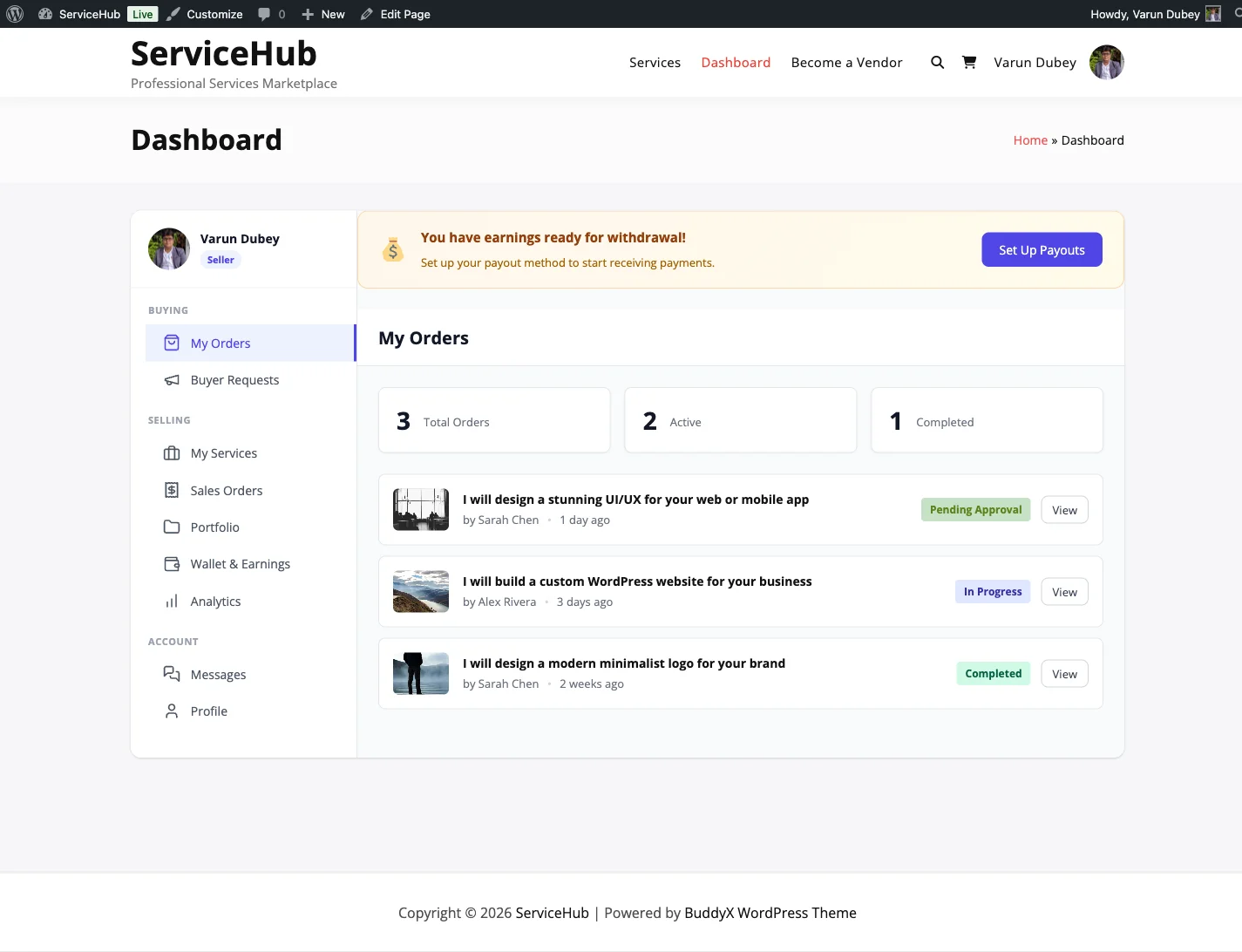
The sidebar on the left shows your available sections. As a buyer, you will see:
My Orders#
This is where you track every service you have purchased. Each order shows:
- Order number -- A unique identifier (e.g., #1042)
- Service name -- What you bought
- Vendor -- Who is doing the work
- Status -- Where the order is in its lifecycle (see Order Tracking)
- Total -- How much you paid
- Date -- When you placed the order
Filter your orders by status to quickly find what you need:
- Active -- Orders currently in progress
- Completed -- Finished orders
- Cancelled -- Orders that were stopped
Click any order to open its detail page, where you can view requirements, messages, deliveries, and take actions like accepting a delivery or requesting a revision.
Buyer Requests#
Post what you need and let vendors come to you. This section lets you:
- Post a new request -- Describe your project, set a budget and deadline
- View your active requests -- See which requests are open and receiving proposals
- Review proposals -- Compare vendor proposals, see their ratings and pricing, and accept the one you like
- Manage expired requests -- Repost or close old requests
See Posting a Buyer Request for a step-by-step guide.
Messages#
All your order conversations in one place. Each order has its own conversation thread so context stays organized.
From here you can:
- See which conversations have unread messages
- Switch between order conversations
- Send text messages and attach files (images, documents, archives)
- View the full conversation history for any order
Messages are the primary way to communicate with vendors during an order. Use them to clarify requirements, ask questions, or provide feedback.
Profile#
Update your account information:
- Display name -- How vendors see you
- Avatar -- Your profile picture
- Bio -- A short description about yourself
- Contact details -- Email and other info
Becoming a Vendor#
If you are currently only a buyer and want to start selling services too, look for the Start Selling button in the sidebar. Clicking it registers you as a vendor (subject to the marketplace's registration mode).
Once approved, additional sections appear in your sidebar:
- My Services -- Create and manage service listings
- Sales Orders -- Handle incoming orders from buyers
- Earnings -- Track revenue and request withdrawals
- Portfolio -- Showcase your work
- Analytics [PRO] -- Sales performance data
Your buying sections remain unchanged -- you can both buy and sell on the same account.
Sidebar Navigation#
The dashboard sidebar groups sections logically:
| Group | Sections |
|---|---|
| Buying | My Orders, Buyer Requests |
| Selling (vendors only) | My Services, Sales Orders, Earnings, Portfolio |
| Account | Messages, Profile |
Your avatar and name appear at the top of the sidebar. If you are a vendor, a "Vendor" badge appears next to your name along with your vendor level.
Responsive Design#
The dashboard adapts to your device:
- Desktop -- Full sidebar visible alongside content
- Tablet -- Sidebar slides in and out with a toggle
- Mobile -- Hamburger menu for compact navigation
Each section has its own URL (e.g., /dashboard/?section=orders), so you can bookmark the ones you use most.
Quick Tips#
- Check your dashboard daily during active orders so you do not miss messages or deliveries
- Bookmark your orders page for quick access:
/dashboard/?section=orders - Enable email notifications so you get alerts for new messages, deliveries, and status changes even when you are not on the site
- Submit requirements promptly after purchasing -- the vendor cannot start until you do
Related Guides#
- Order Tracking for Buyers -- Understanding order statuses and actions
- How to Find and Purchase a Service -- The buying flow
- Posting a Buyer Request -- Let vendors come to you
- Order Messaging -- How to communicate with vendors