Vendor Reputation & Review Moderation
Reviews & RatingsVendor reputation is built one review at a time. This guide explains how ratings shape a vendor's standing on your marketplace and how you can manage reviews as an admin.
How Reputation Works#
A vendor's reputation is simply the average of all their approved review ratings. Every completed order that receives a review contributes equally to the overall score -- there is no special weighting for recent or older reviews.
Example:
A vendor with three services might look like this:
- WordPress Plugin Development: 4.8 stars (20 reviews)
- Theme Setup: 4.5 stars (10 reviews)
- Site Migration: 4.9 stars (8 reviews)
Their overall vendor rating: 4.71 stars (across 38 reviews)
Each service also has its own individual rating, which appears on that service's page. The vendor's overall rating appears on their profile and vendor cards.
What Ratings Affect#
Search Visibility#
Higher-rated vendors and services appear more prominently in marketplace search results. Ratings above 4.5 stars tend to get excellent placement, while ratings below 3.5 may be shown less frequently.
Vendor Levels#
Ratings and review counts are key requirements for advancing through vendor levels:
| Level | Minimum Rating | Minimum Reviews |
|---|---|---|
| New Vendor | None | None |
| Rising Vendor | 4.0 stars | 3 reviews |
| Top Rated | 4.7 stars | 10 reviews |
| Pro Vendor | Admin-granted | Admin-granted |
Buyer Confidence#
Buyers rely heavily on ratings when choosing a vendor. A strong rating with many reviews signals reliability, while a low rating may steer buyers elsewhere.
Sub-Ratings Are Informational Only#
Buyers can optionally rate three areas -- Communication, Quality, and Value -- in addition to the overall star rating. These sub-ratings are displayed on the review for buyer information, but they do not factor into the overall vendor or service rating calculation. Only the main star rating counts.
Review Moderation#
When Reviews Auto-Approve (Default)#
By default, every review is published as soon as the buyer submits it. The vendor is notified immediately and ratings update in real time.
Turning On Moderation#
If you want to review submissions before they go public:
- Go to Settings > Vendor Settings.
- Enable Review Moderation ("Hold new reviews for admin approval before they are published").
- Save changes.
With moderation enabled, new reviews go into "Pending" status. They are hidden from the public until you approve them.
Approving and Rejecting Reviews#
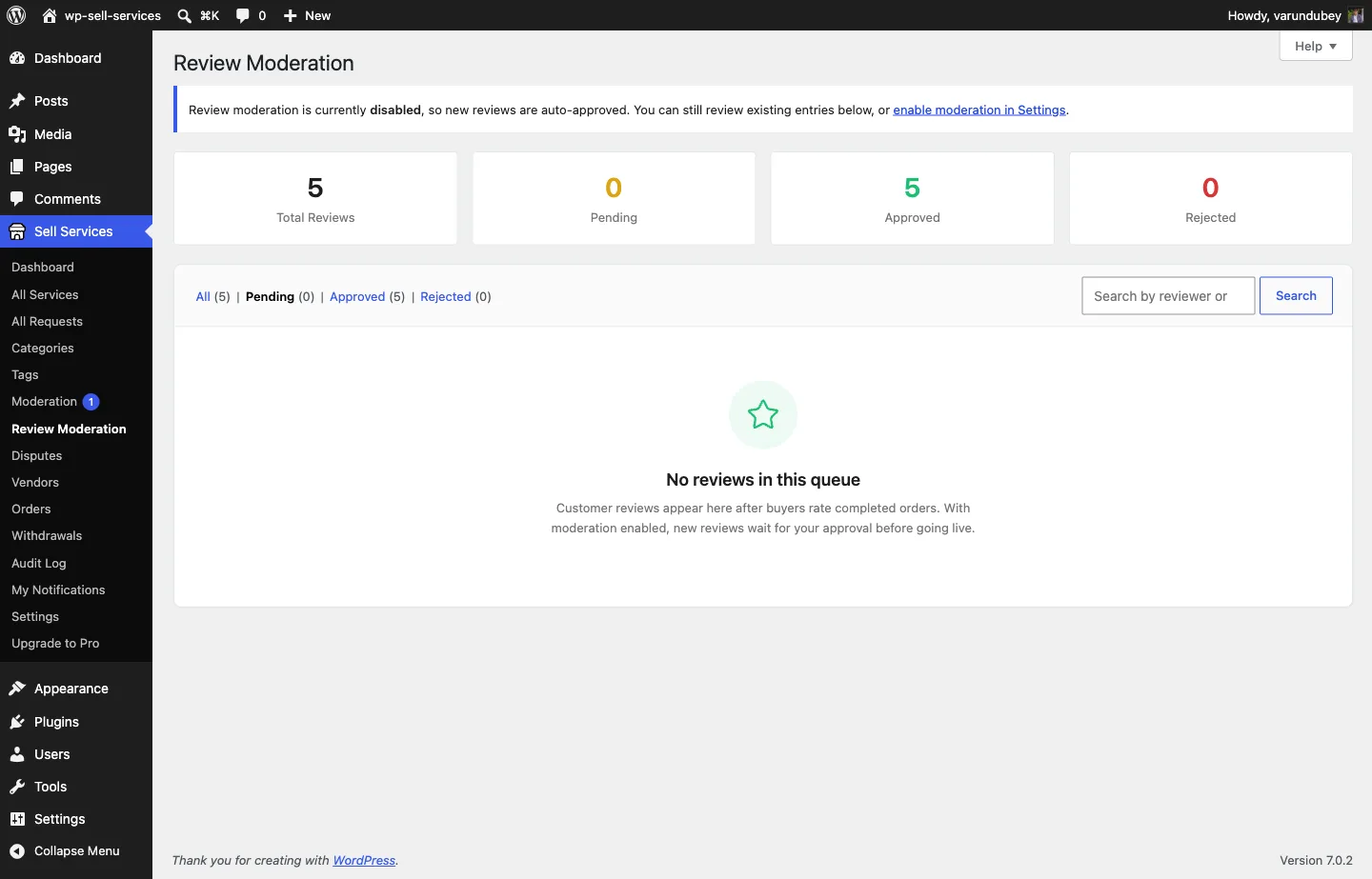
Go to Sell Services > Review Moderation to manage pending reviews.
To approve: Click Approve. The review goes live instantly and the service and vendor ratings are updated.
To reject: Click Reject. The review stays hidden permanently. Only reject reviews that contain spam, personal attacks, harassment, prohibited content, or content unrelated to the actual service.
When to Enable Moderation#
- New marketplaces where you want hands-on quality control.
- After spam issues where you need to filter junk reviews.
- For compliance if your industry requires content oversight.
For established marketplaces with a trusted user base, auto-approval is usually the better choice -- it keeps the feedback loop fast and reduces admin overhead.
Admin Review Management#
The Review Moderation page lists reviews newest first. You can:
- Filter by status with the tabs: All, Pending, Approved, and Rejected.
- Search by reviewer name or review text.
- Approve or Reject each review. A rejected review can be approved later and an approved one rejected, so a decision is never final.
Reviews are approved or rejected one at a time; there is no bulk action. A review's rating and text cannot be edited, so reject one that contains personal information rather than rewriting it.
Reputation Recovery for Vendors#
Vendors with low ratings cannot delete old reviews. The only path forward is to deliver excellent work consistently and accumulate new positive reviews over time.
Example: A vendor at 3.8 stars with 20 reviews would need roughly 30 consecutive 5-star reviews to reach a 4.5 average. That can take 3-6 months of consistent excellence.
As an admin, if you notice a vendor struggling, reach out to offer guidance. Sometimes a conversation about service quality or communication habits can turn things around.
Tips#
For Admins:
- Review pending submissions within 24 hours if moderation is enabled.
- Be consistent in your approval criteria. Negative reviews that are factual and constructive should be approved.
- Watch for vendors whose ratings suddenly drop -- it may signal a quality problem worth investigating.
- Document your rejection reasons internally for consistency.
For Vendors:
- Deliver quality work, communicate proactively, and meet deadlines. These are the foundations of a strong reputation.
- Reply to every review professionally -- even negative ones. It shows buyers you take feedback seriously.
- Do not ask buyers to remove negative reviews or offer incentives for positive ones.
- Use negative feedback as a learning opportunity. If multiple reviews mention the same issue, fix it.