Vacation Mode & Availability
Vendor SystemNeed a break? Vacation mode lets you temporarily stop accepting new orders while keeping your profile, services, and vendor level intact.
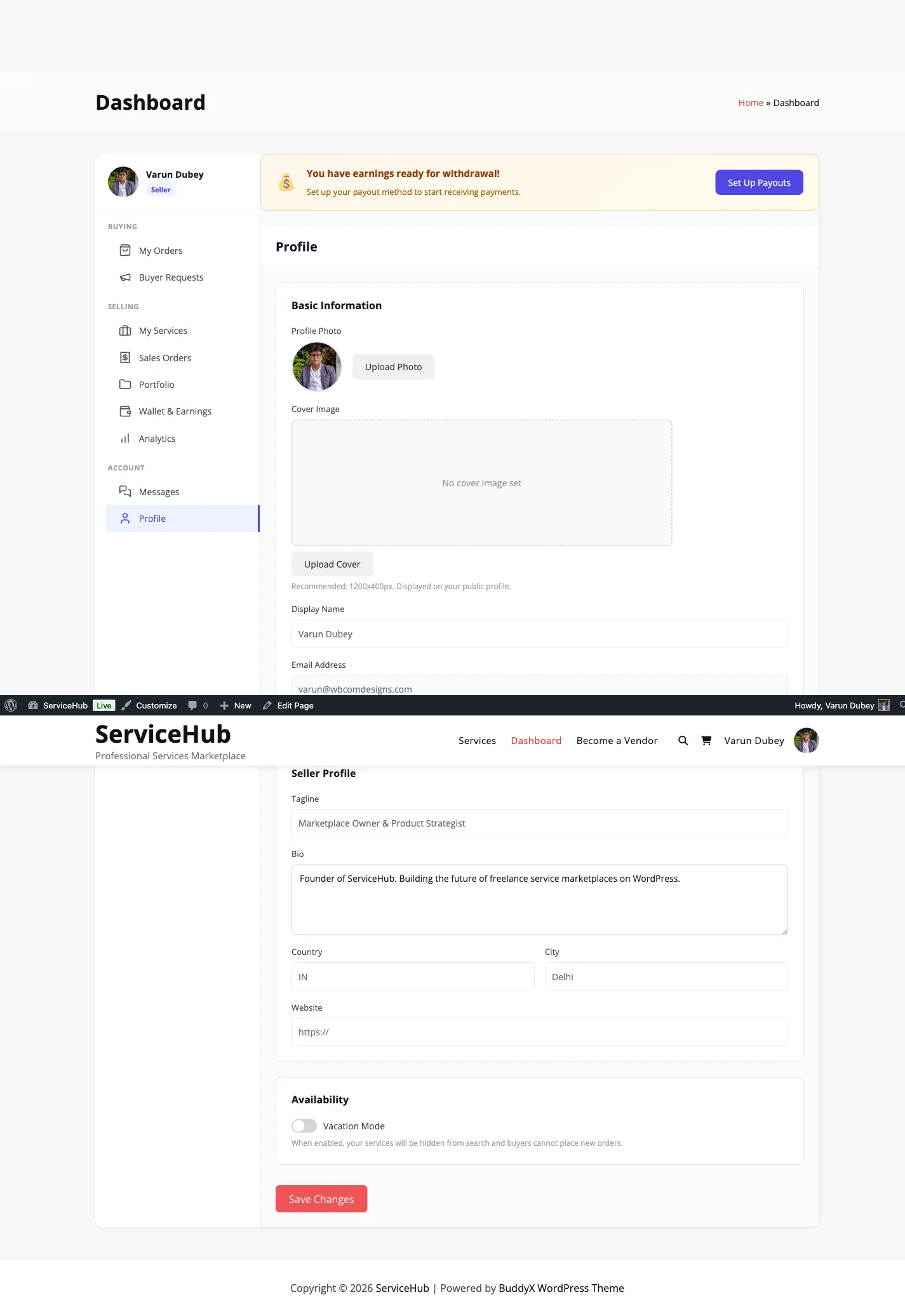
How to Turn It On#
- Go to Dashboard > Profile (or Settings).
- Toggle Vacation Mode to ON.
- Enter an optional vacation message for buyers.
- Save changes.
That is it. Your services are now paused.
What Happens When Vacation Mode Is Active#
For buyers visiting your profile:
- A vacation notice is displayed on your profile and services.
- Order buttons are disabled -- nobody can purchase your services. A service a buyer had already put in their cart is marked unavailable there and cannot be paid for until you are back.
- Your custom vacation message is shown (if you wrote one).
- Buyers can still view your services and send you messages.
For your services:
- They stay published. Anyone with a direct link, and anyone visiting your profile, can still open them and see the vacation notice.
- They are left out of listings while you are away: the services catalog, search results, Related services on other vendors' pages, the services and featured-services grids placed on other pages, and the mobile app. They come back the moment vacation ends.
- They stay in buyers' favorites lists.
Vacation ends when you switch it off, or automatically once your return date has passed.
For your existing orders:
- Orders placed before vacation mode are not affected. You are still expected to complete them.
- You can still deliver work, communicate with buyers, and manage active orders from your dashboard.
- Deadlines are not automatically extended. If you need more time, request an extension from the buyer.
Your Vacation Message#
Write a short, friendly message so buyers know what is going on. For example:
Thanks for visiting! I am currently on a break and not accepting new orders. I will be back soon. Feel free to message me and I will respond when I return.
Keep it brief, professional, and optionally mention when you plan to return.
Turning Vacation Mode Off#
When you are ready to accept orders again:
- Go to Dashboard > Profile (or Settings).
- Toggle Vacation Mode to OFF.
- Save changes.
Your services become available instantly. Order buttons reappear and your vacation message is removed.
Impact on Your Account#
Vendor level: Vacation mode does not directly affect your vendor level. Your ratings, review history, and statistics all remain the same. However, extended inactivity may indirectly impact your level if you stop completing orders and responding to messages.
Search visibility: Your services stay in search results during vacation, though some marketplace searches may filter out vendors on vacation. Your SEO position is maintained.
Important Limitations#
- Manual toggle only -- You must turn vacation mode on and off yourself. There is no scheduled start date, end date, or automatic return.
- No deadline pausing -- Existing order deadlines keep running. Request extensions if needed.
- No duration limit -- You can stay on vacation as long as you want, but a very long absence may reduce buyer confidence and return traffic.
Set a personal reminder on your calendar so you do not forget to turn vacation mode off when you are ready.
Alternatives to Full Vacation Mode#
If you do not want to pause everything:
- Pause individual services -- Go to Dashboard > My Services and pause specific listings while keeping others active.
- Extend delivery times -- Edit your services to add extra delivery days temporarily.
- Set services to draft -- Hides them from the marketplace entirely. Switch back to "Published" when you return.
Tips#
Before going on vacation:
- Finish and deliver as much active work as possible.
- Let current buyers know about your upcoming break through order messages.
- Request deadline extensions if you need them.
- Write a clear vacation message.
When you return:
- Turn off vacation mode.
- Check your messages for any inquiries that came in while you were away.
- Review pending orders and address any issues.
- Update your services if delivery times need adjusting.