Managing Services: Edit, Pause & Delete
Service CreationAfter publishing a service, you can update it, temporarily hide it, or remove it entirely. This guide covers how each action works and what to expect.
Accessing Your Services#
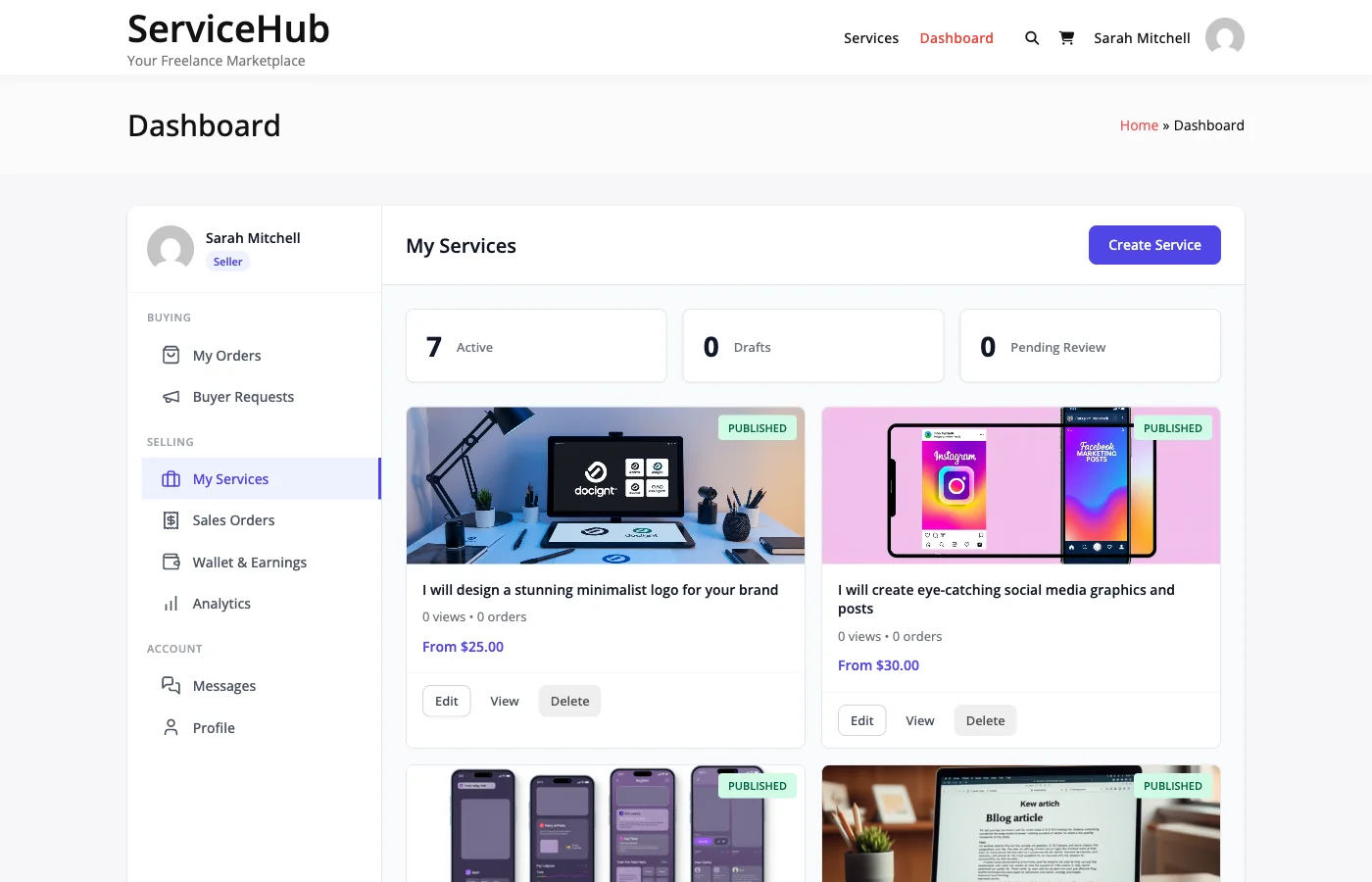
Go to your Dashboard and click My Services in the sidebar. You will see a list of all your services with their:
- Title and featured image
- Status -- Published, Draft, Pending, or Suspended
- Price range -- Starting from the lowest package price
- Total orders and active orders
- Average rating
Editing a Service#
Click Edit next to any service to open the service editor. You can update:
- Title and description
- Category
- Pricing packages -- Change prices, delivery times, revisions, and features
- Add-ons -- Add, remove, or reprice extras
- Gallery images and videos
- Requirements and FAQs
- Tags
What Happens After Editing#
The behavior depends on whether the marketplace requires service moderation:
| Moderation Setting | What Happens |
|---|---|
| Moderation off | Changes go live immediately |
| Moderation on | Your service is set to "Pending" and goes back into the approval queue. It is temporarily hidden from the marketplace until an admin approves it. |
Tip: If moderation is enabled, avoid making frequent small edits to a published service. Batch your changes and submit them all at once to minimize time spent waiting for re-approval.
Active Orders Are Not Affected#
Editing a service does not change any orders already in progress. Existing orders keep their original package terms (price, delivery time, revisions). Only new orders use the updated details.
Pausing a Service#
Pausing hides your service from the marketplace without deleting it. Buyers cannot find or purchase a paused service, but it keeps all its settings, reviews, and order history.
How to Pause#
- Go to Dashboard > My Services
- Click the Pause button next to the service
- The status changes to Draft and the service is removed from public listings
How to Reactivate#
- Go to Dashboard > My Services
- Find the paused service (status shows "Draft")
- Click Activate to republish it
If moderation is enabled, reactivating sends the service back through the approval queue.
When to Pause#
- Taking time off -- Use Vacation Mode instead if you want to pause all services at once
- Updating content -- Pause while making major changes, then reactivate when ready
- Seasonal services -- Hide services you only offer at certain times of the year
- Too many active orders -- Temporarily stop new orders while you catch up on existing work
What Happens to Active Orders#
Pausing a service does not affect orders already in progress. Existing buyers can still communicate with you, receive deliveries, and go through the normal order lifecycle. Only new purchases are prevented.
Deleting a Service#
Deleting permanently removes a service from the marketplace.
Before You Delete#
You cannot delete a service that has active orders. You must first:
- Complete or cancel all active orders
- Wait for any pending deliveries or disputes to resolve
How to Delete#
- Go to Dashboard > My Services
- Click Delete next to the service
- Confirm the deletion
What Gets Removed#
- The service listing and all its content
- Package definitions and add-ons
- Gallery images associated with the service
- FAQs and requirements
What Is Preserved#
- Completed order records -- All past orders, conversations, and deliveries remain in the system
- Reviews -- Existing reviews are preserved
- Your earnings -- All commission records stay intact
When to Delete vs Pause#
| Action | Use When |
|---|---|
| Pause | You might offer this service again in the future |
| Delete | You will never offer this service again and want a clean slate |
If you are unsure, pause instead. You can always delete later, but you cannot recover a deleted service.
Service Statuses Reference#
| Status | Visible to Buyers | Can Be Purchased | How to Get Here |
|---|---|---|---|
| Published | Yes | Yes | Approved by admin (or moderation off) |
| Draft | No | No | New service not yet submitted, or paused by vendor |
| Pending | No | No | Submitted for moderation, awaiting admin approval |
| Suspended | No | No | Admin has paused this service (e.g., policy violation) |
If Your Service Is Suspended#
An admin has paused your service, usually because it violates marketplace policies or needs review. You will typically receive a notification explaining why. Contact the marketplace admin to understand what needs to change before it can be reactivated.
Tips for Managing Services#
- Keep descriptions current -- Outdated descriptions lead to mismatched expectations and revision requests
- Adjust pricing gradually -- Large sudden price changes can confuse returning buyers
- Monitor your reviews -- If you see recurring feedback, update your service or packages to address it
- Use pause strategically -- Better to pause than to take orders you cannot deliver on time
- Delete sparingly -- A service with strong reviews and order history is an asset; pause it rather than delete it
Related Guides#
- Service Creation Wizard -- How to create a service from scratch
- Pricing Packages -- Setting up Basic, Standard, and Premium tiers
- Publishing and Moderation -- The approval process
- Vacation Mode -- Pause all services at once
- Vendor Dashboard -- Full dashboard overview