Advanced Settings (Debug, API, Uninstall)
Platform SettingsConfigure data management, debugging, and learn about the automated background tasks that keep your marketplace running smoothly.
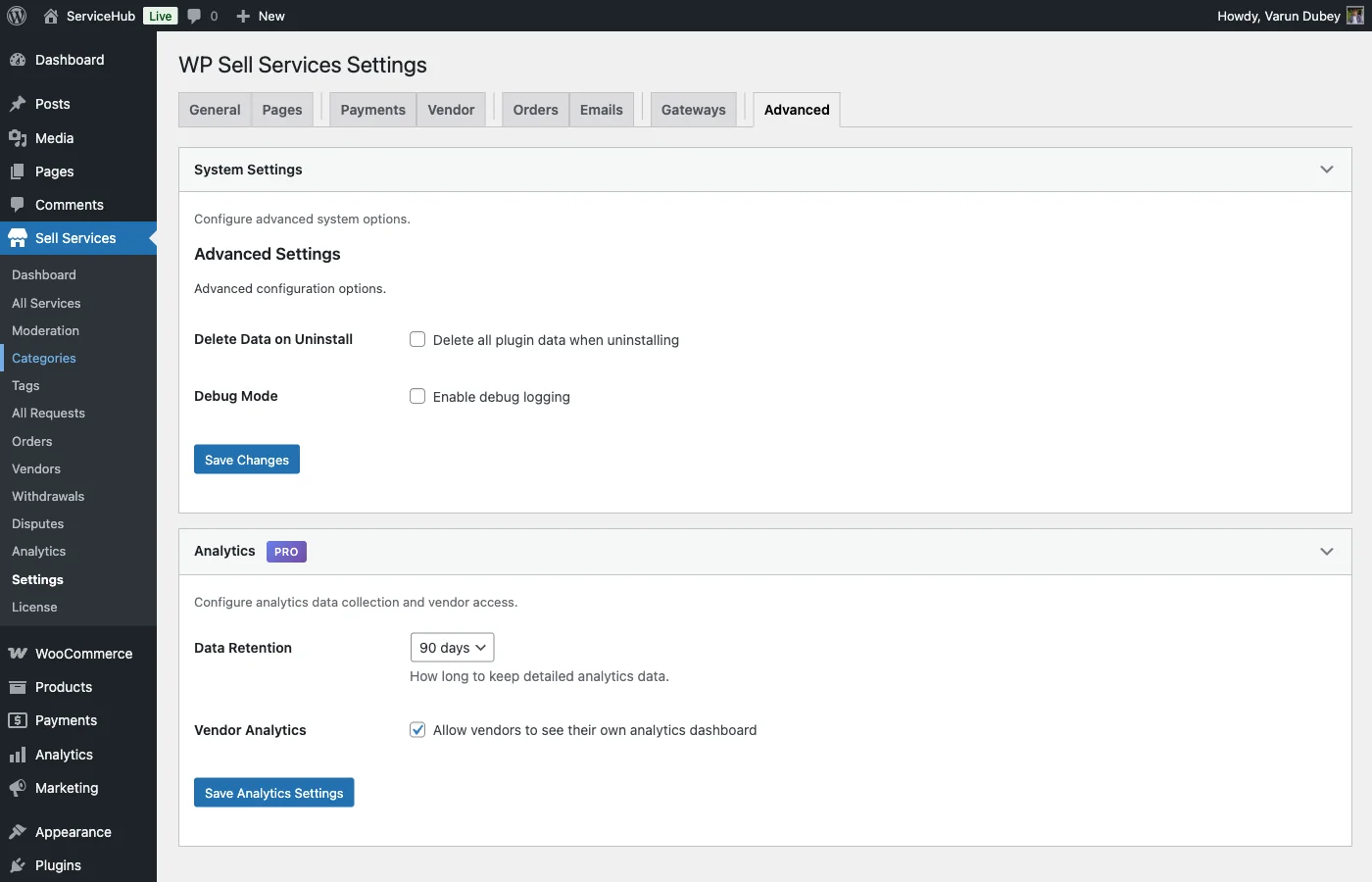
Delete Data on Uninstall#
By default, uninstalling the plugin keeps all your marketplace data intact. If you enable this option, uninstalling will permanently delete everything: services, orders, vendor profiles, reviews, conversations, earnings history, and all plugin settings.
When to Enable This#
- You are testing the plugin temporarily and want a clean removal
- You are shutting down the marketplace and moving to a different solution
- Compliance requires complete data removal
When to Keep It Disabled#
- You might reinstall the plugin later
- You need to preserve transaction records
- You want a safety net in case of accidental uninstall
What Stays After Deletion#
Even with this option enabled, some things are not removed:
- WordPress user accounts (buyers and vendors remain as WP users)
- The pages mapped under Settings > Pages (Services, Dashboard, Become a Vendor and the rest), because the plugin adopts any page you already had that carries the shortcode and cannot tell those apart from the ones it published; delete them by hand if you no longer want them
- Uploaded media files (images, documents in your media library)
- Payment records held by your payment processor (Stripe, PayPal, etc.)
Important: This is irreversible. Always export your data and create a database backup before uninstalling with this option enabled.
Debug Mode#
Enable detailed logging when you need to troubleshoot issues. When active, the plugin records information about orders, payments, emails, file uploads, and background tasks to your WordPress debug log.
- Go to Sell Services > Settings > System
- Check Enable Debug Mode
- Save Changes
What gets logged:
- Order creation and status changes
- Payment processing and commission calculations
- Email delivery attempts (success and failure)
- File upload operations
- Background task execution
- Errors and warnings
Where to view logs:
- Free version: Check the WordPress debug log at
wp-content/debug.log - Go to Sell Services > Audit Log for a filterable record of admin and marketplace actions
Tip: Enable debug mode only when troubleshooting. Disable it in normal operation to keep your logs clean and avoid any (minor) overhead.
Max Upload Size#
Set the maximum file size for uploads (delivery files, attachments, requirement files). The default is 10MB. This is capped by your server's PHP settings -- if your server allows only 25MB uploads, that will be the actual limit regardless of what you set here.
Allowed File Types#
Control which file types vendors and buyers can upload. By default, common formats are allowed: JPG, JPEG, PNG, GIF, PDF, DOC, and DOCX.
Add or remove file extensions to match your marketplace needs.
Currency Symbol Position#
Choose where the currency symbol appears relative to the amount. Options include:
- Left -- $100 (default)
- Right -- 100$
- Left with space -- $ 100
- Right with space -- 100 $
Configure this at Sell Services > Settings > General.
Menu Visibility#
Hide dashboard sections from specific roles. The Menu Visibility card is a grid: dashboard sections down the side, every role on your site across the top. A ticked box means that role can see that section.
Everything starts ticked, so every role sees every section. Untick a box to hide that section from that role. If you untick every box for a role, that role sees nothing.
Sections you can hide: My Orders, Favorites, Buyer Requests, My Services, Sales Orders, Earnings & Payouts, Portfolio, Analytics, Messages, Notifications, Disputes, Profile.
Hiding a section also blocks its direct URL. This is access control, not just menu cosmetics -- a user who bookmarks a hidden section is refused, so you can use it to genuinely take a capability away from a role rather than merely hiding the link.
A section is hidden for a user when any of their roles hides it. Someone with two roles gets the union of both restrictions, not the more permissive of the two.
Typical uses:
- Hide the whole selling side (My Services, Sales Orders, Earnings & Payouts, Portfolio) from a buyer-only role.
- Hide Analytics from vendors while keeping it for administrators.
- Hide Disputes from everyone while you decide on a mediation policy.
For developers, the same gate is exposed as the wpss_can_access_dashboard_section
filter -- see Hooks and Filters.
Demo Content#
Import Demo Content#
Quickly populate your marketplace with sample services, vendors, and categories for testing or demonstration purposes. Go to Settings > System and click Import Demo Content.
Delete Demo Content#
When you are done testing, click Delete Demo Content to remove all sample data without affecting your real marketplace content.
Deleting removes the demo services, the demo vendor accounts, and any category the demo created that nothing uses any more. Your own categories are never removed, even empty ones. The button appears whenever demo content is actually on the site, so after deleting you can import again. wp wpss demo delete does exactly the same thing from the command line.
In the setup wizard, clicking Import Demo Content when it is already installed shows Already imported rather than importing a second copy.
Automated Background Tasks#
WP Sell Services runs three scheduled tasks automatically to keep your marketplace in good shape.
Auto-Complete Orders#
Runs every hour. If a buyer does not accept or request revisions on a delivered order within the configured time limit (default: 3 days), the order is automatically marked as complete and payment is released to the vendor.
Configure the auto-complete delay at Settings > Orders & Disputes.
Expire Old Buyer Requests#
Runs once daily. Buyer requests that have passed their expiration deadline are automatically marked as expired and hidden from vendor listings.
Update Vendor Statistics#
Runs twice daily. Recalculates vendor performance metrics including overall rating, total earnings, completion rate, response time, and service counts. This keeps vendor profiles and rankings accurate without impacting real-time performance.
If Background Tasks Are Not Running#
WordPress scheduled tasks rely on site traffic to trigger. On low-traffic sites, tasks may run late. If you notice orders not auto-completing or vendor stats being outdated, set up a real server cron job through your hosting control panel to ping your site every 15 minutes.
Additional Background Tasks [PRO]#
- Auto-Withdrawals -- Automatically processes vendor payouts when earnings reach a threshold
- Cloud Storage Sync -- Keeps local and cloud storage in sync, cleans up orphaned files
Troubleshooting#
Background tasks not running? Install the free WP Crontrol plugin to check if scheduled tasks are registered. If your site has low traffic, set up a real server cron job.
Debug log not showing anything?
Make sure WordPress debugging is also enabled in your wp-config.php file, and that the wp-content directory is writable.
Data still present after uninstall? The "Delete Data on Uninstall" option must be enabled before you uninstall. Also, use the proper WordPress uninstall process (Plugins page) rather than deleting files via FTP.