Service Moderation & Approval Queue
Admin Tools & ModerationKeep your marketplace quality high by reviewing vendor services before they go live. When moderation is enabled, every new service submission needs your approval.
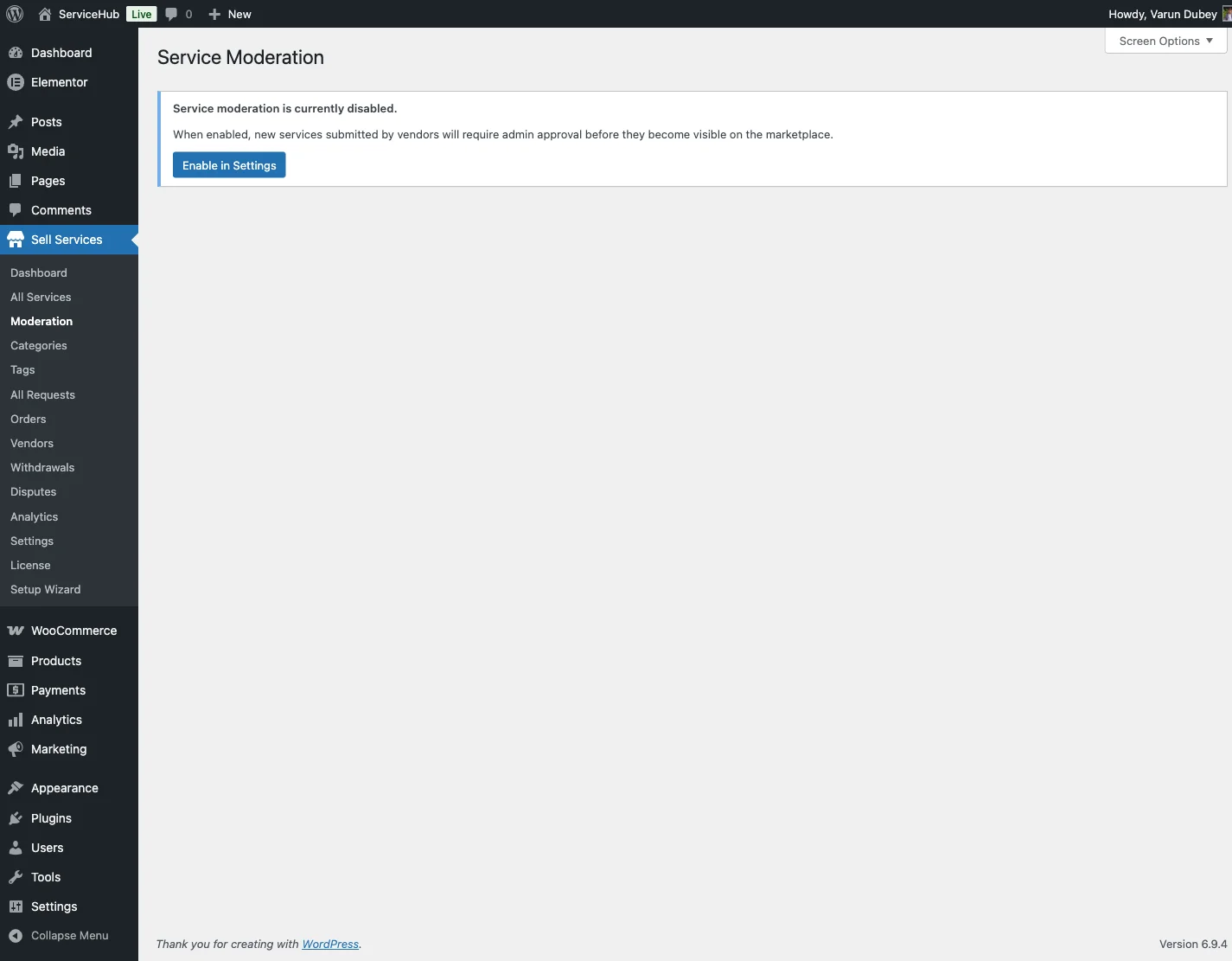
Turning On Moderation#
- Go to Sell Services > Settings > Vendor Settings
- Check Require Service Moderation
- Click Save Changes
When moderation is on: New services are submitted as "Pending" and stay hidden until you approve them. Vendors are notified when their service is approved or rejected.
When moderation is off: Services go live immediately when a vendor publishes them. No review step needed.
The Moderation Workflow#
Here is what happens from submission to publication:
- Vendor submits a service -- clicks "Publish" on their new listing
- Service enters the queue -- status is set to "Pending" and it is hidden from buyers
- You review it -- check the title, description, pricing, and images
- You approve or reject -- approved services go live; rejected ones return to draft
- Vendor gets notified -- they receive an email with the outcome
If you reject a service, the vendor can edit it and resubmit. The resubmitted service goes back into your moderation queue.
Reviewing Pending Services#
Go to Sell Services > Moderation to see all services waiting for your review. The moderation menu shows a badge with the pending count so you never miss new submissions.
What You See in the Queue#
Each service in the queue shows:
- Thumbnail -- the service image
- Service title -- click to preview the full listing
- Vendor name -- who submitted it
- Category -- what type of service
- Price -- starting price (basic package)
- Submitted date -- when it was submitted
- Approve / Reject buttons -- take action right from the list
You can filter the queue by status: Pending, Approved, or Rejected.
What to Look For#
When reviewing a service, check for:
- Clear, honest title -- no misleading claims or ALL CAPS
- Detailed description -- explains what the buyer gets, how it works, and expected turnaround
- Reasonable pricing -- packages make sense for the scope of work
- Quality images -- relevant portfolio samples, not stock photos or stolen work
- Policy compliance -- no prohibited services or copyright violations
Approving a Service#
Click Approve next to the service. The service immediately:
- Becomes visible on your marketplace
- Appears in search results and the vendor's profile
- Can start receiving orders
The vendor gets an email confirming their service is live, with a link to view it.
Bulk approval: Check multiple services and select Approve from the bulk actions dropdown to approve several at once.
Rejecting a Service#
Click Reject and enter a clear reason explaining what needs to change. Be specific so the vendor knows exactly what to fix.
Good rejection feedback: "Your description is too brief. Please add details about what you will deliver, your typical process, and expected turnaround time. Also, please upload at least 2 portfolio samples showing your actual work."
Unhelpful rejection feedback: "Needs improvement."
When rejected:
- The service returns to draft status
- The vendor sees the rejection reason in their dashboard
- The vendor can edit and resubmit
- Resubmissions enter the moderation queue again
Common Rejection Reasons#
- Thin description -- needs more detail about deliverables and process
- Irrelevant images -- portfolio samples do not match the service offered
- Stolen or stock images -- portfolio must be original work
- Unrealistic pricing -- price does not match the scope of work promised
- Prohibited service -- violates marketplace policies
- Duplicate listing -- vendor already has a similar service
What Vendors See#
Pending service: Yellow "Pending Review" badge with a message that the service is awaiting approval.
Rejected service: Red "Rejected" badge with the rejection reason displayed and an "Edit Service" button.
Approved service: Green "Live" badge with order statistics and full editing capabilities.
Who Bypasses Moderation?#
Administrators (anyone with manage_options) bypass the moderation queue: services they create publish immediately, and publishing a pending service from the editor, Quick Edit or bulk edit approves it. Shop managers are not administrators and go through the queue like any other vendor.
Notifications#
When moderation is enabled, email notifications go out automatically:
- To admins: When a new service is submitted or resubmitted
- To vendors: When their service is approved or rejected
Configure which emails are active in Settings > Emails.
Related Docs#
- Vendor Management -- Managing vendor accounts
- Withdrawal Approvals -- Processing vendor payouts
- Manual Orders -- Creating orders by hand